Workflow Images Similarity in HGrid247-3.5
The purpose of this workflow is:
- Comparing an image with a group of other images
- Calculating the similarity value between images
- Sort results by highest similarity level
Usage example:
- similar image search
- image duplication detection
- image recommendation system
Step 1 – Creating a Workflow
- Right click on the workshop package
- Select New Workflow
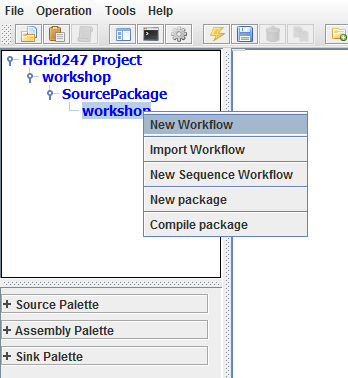
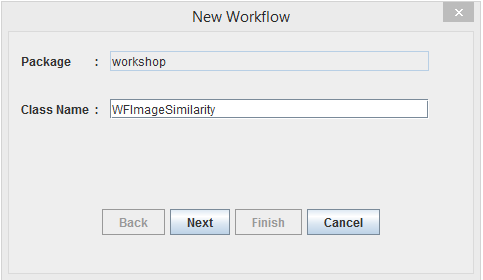
- Enter the class name:
WFImageSimilarity
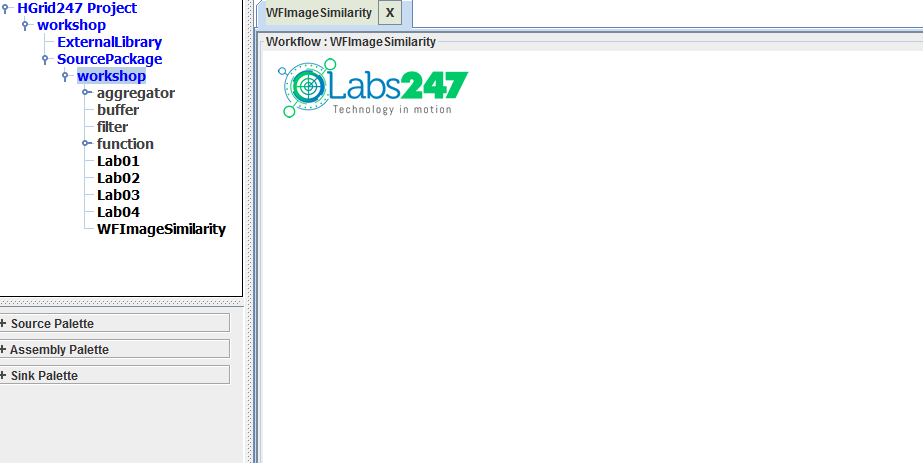
After clicking Finish , a workflow canvas will appear to design the pipeline.
Step 2 – Defining Source Data
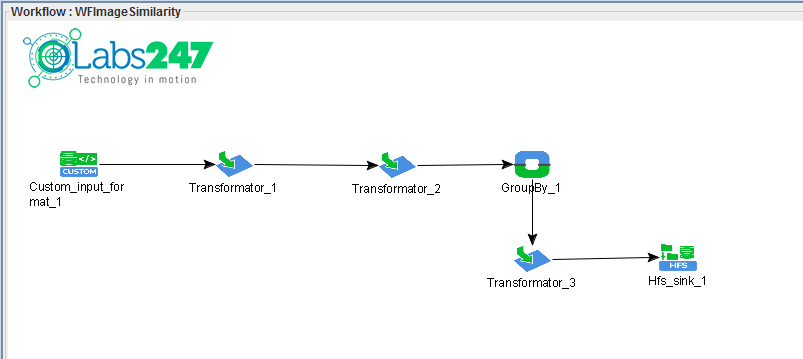
Add Custom Source (

) from palette.
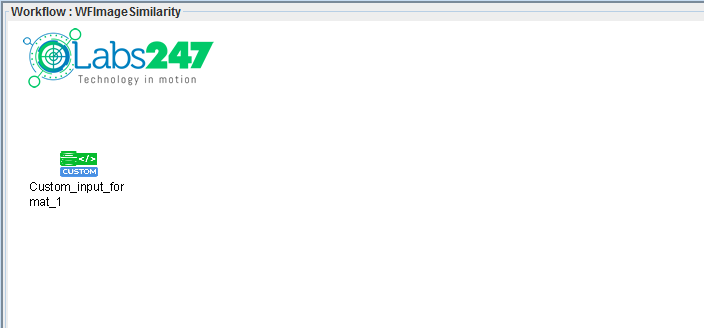
This source is used to read image files .
Arrangement:
    Input Format:
    com.solusi247.mapred.image.ImageInputFormat
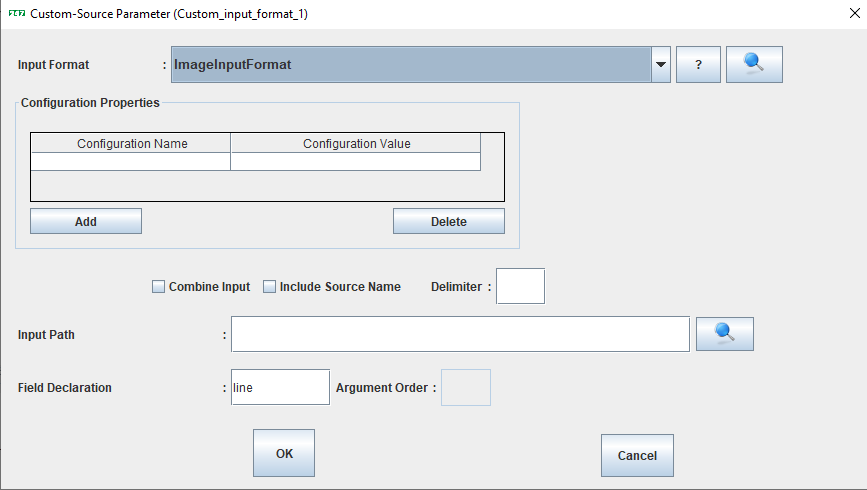
This means the system reads data in the form of image files as input.
Step 3 – Defining Input and Output Types
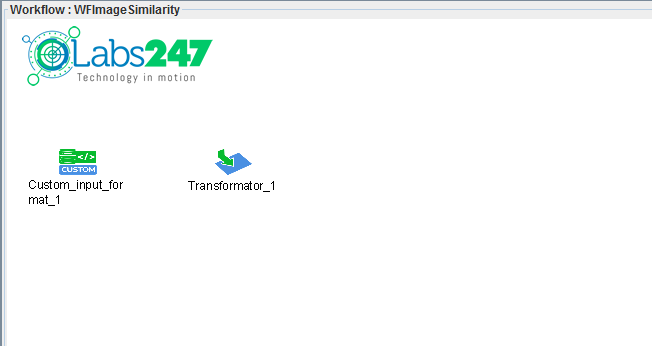
- Add Transformator (
 )
)
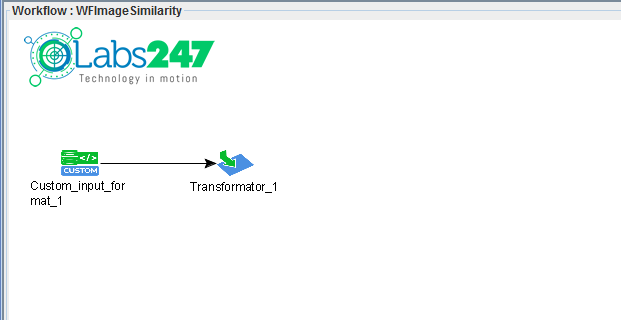
- Connect:
Custom_input_format_1 → Transformator_1
- Add output field:
    image1 : Object
    image2 : Object
- Use the function:
ImageFromArgument
This function is used to retrieve the reference image from the program parameters.
- Data relations:
    line → ImageFromArgument → image1
    line → image2
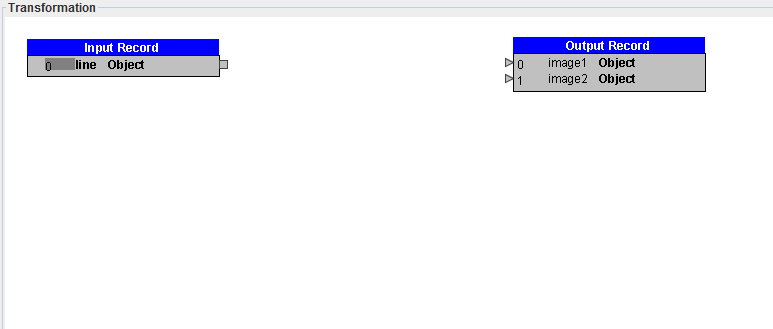
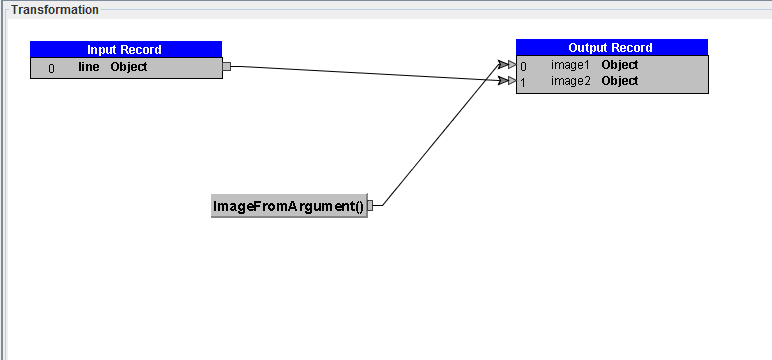
It means:
    image1 = image from argument
    image2 = image from dataset
Step 4 – Calculating Image Similarity
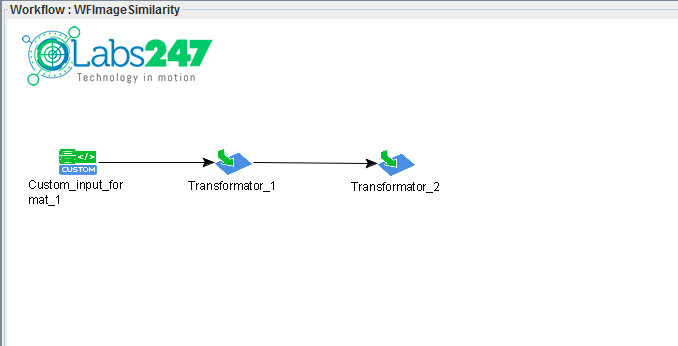
Add Transformormator (
).
Connect:
Transformator_1 → Transformator_2
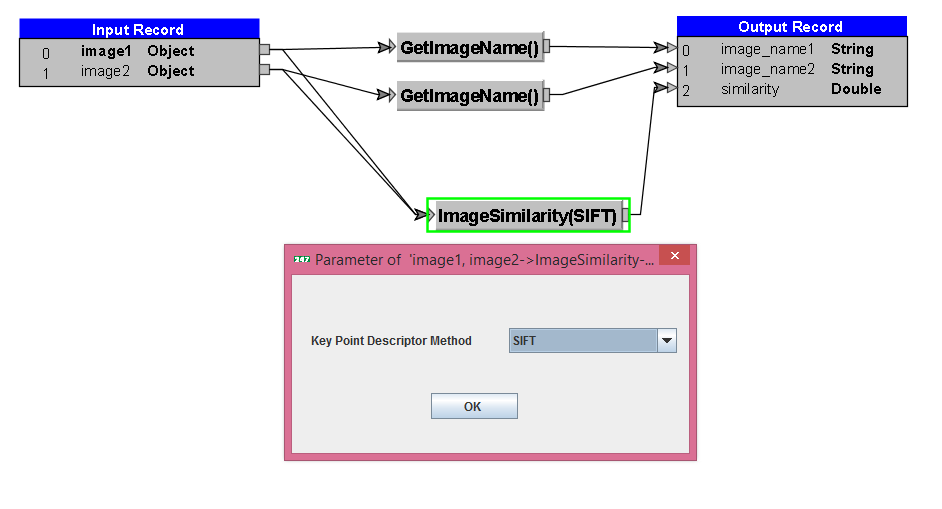
Add output field:
    image_name1 : String
    image_name2 : String
    similarity  : Double
Add the following function:
1 GetImageName
Used to retrieve the image file name .
Relation:
    image1 → GetImageName → image_name1
    image2 → GetImageName → image_name2
2 ImageSimilarity
This function calculates the similarity level of images.
Input:
    image1
    image2
Output:
similarity
Relation:
    image1 ─┐
            ├── ImageSimilarity ──> similarity
    image2 ─┘
Preferred method:
SIFT (Scale Invariant Feature Transform)
This method detects keypoints in the image and then compares them.
Step 5 – Grouping dan Sorting
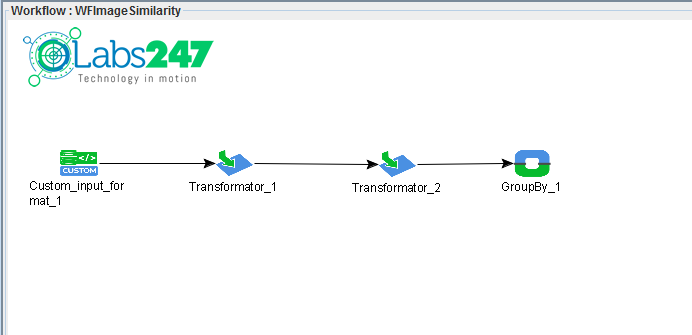
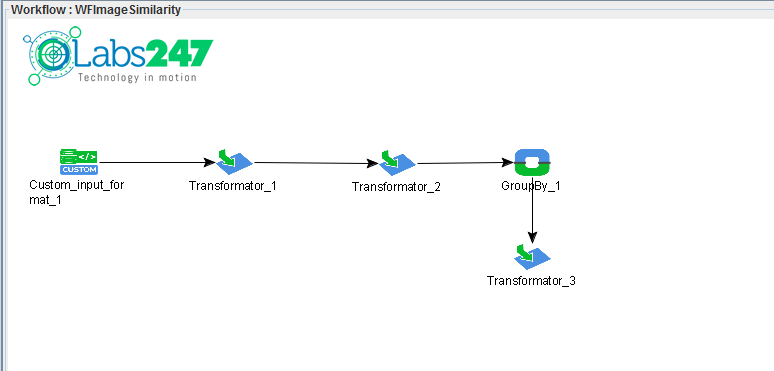
Add GroupBy Assembly (

).
Connect:
Transformator_2 → GroupBy_1
Arrangement:
    Group Field:
    image_name1
Sorting:
    Sort Field:
    similarity (descending)
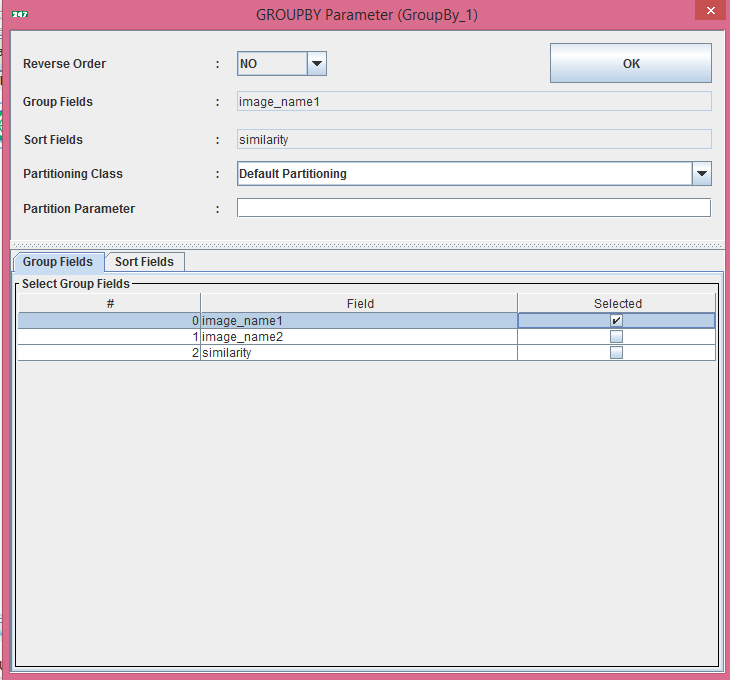
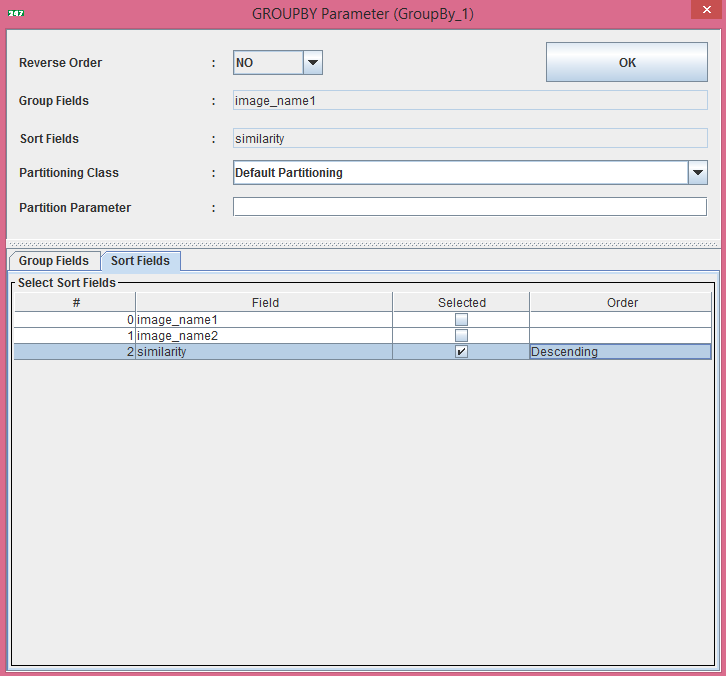
This means that the results will be sorted from the highest similarity value .
Add Transformaator (
).
Connect:
GroupBy_1 → Transformator_3
Use options:
Identity All
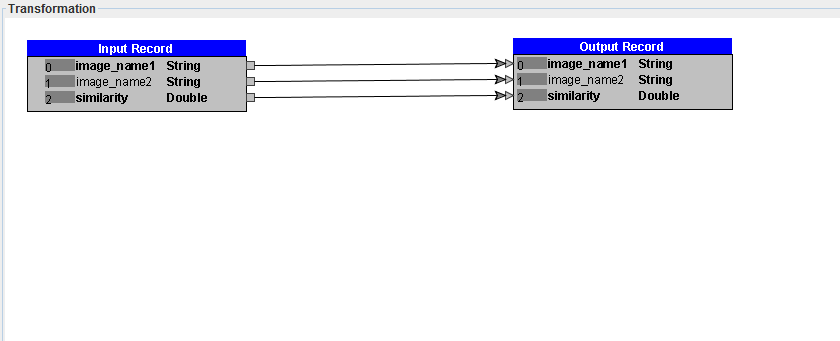
This function simply passes the data to the next level.
Step 6 – Output Workflow
Add HFS Sink (

) to save results to HDFS.
Connect:
Transformator_3 → Hfs_sink_1
The output will be stored in a flat file format on HDFS.
Step 7 – Compile Workflow
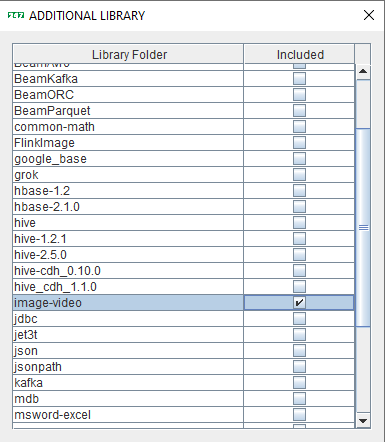
Before compiling, add additional libraries:
image-video
Menu:
File → Additional Library
Then click the button:
Generate (

)
HGrid247 will produce:
workshop_mr.jar
Step 8 – Running the Workflow
Workflow is executed on Hadoop cluster using command:
hadoop jar workshop_mr.jar workshop.WFImageSimilarity book output_sim book/cover4.jpg
Parameter:
    Parameter           Description
    ----------------------------------------
    book                image dataset folder
    output_sim          folder hasil output
    book/cover4.jpg	reference image
Example Output Results
    book/cover4.jpg     book/cover4.jpg     1.0
    book/cover4.jpg     book/cover3.jpg     0.49198125324304637
    book/cover4.jpg     book/cover5.jpg     0.2866741744110343
    book/cover4.jpg     book/cover1.jpg     0.18940610319724102
    book/cover4.jpg     book/cover2.jpg     0.1566145899555032
Explanation:
    image1	image2      similarity
    -------------------------------
    cover4	cover4      1.0 (identical)
    cover4	cover3      0.49
    cover4	cover5      0.28
The closer to 1.0 , the more similar the images are.
Note : The file of workflow WFImageSimilarity can be found in the following link :
WFImageSimilarity.csd