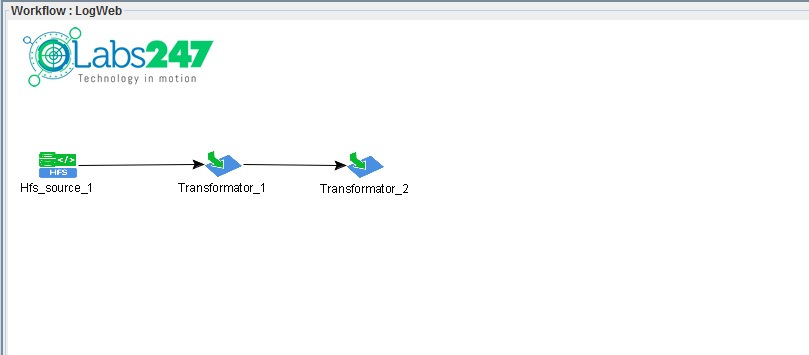
Apache Web Log Processing using HGrid247-3.5
In this tutorial we create a LogWeb workflow using HGrid247 to process Apache web server logs (
web-access.log).
These logs are usually generated by web servers such as Apache HTTP Server and contain information about user access activity to the website.
This workflow aims to:
- count the number of hits per hour
- calculates the total bytes sent per hour
The workflow will be compiled into a MapReduce application and run on an Apache Hadoop cluster .
Apache Log Data Example
Example log lines:
103.28.21.63 - - [21/Oct/2019:03:36:00 +0700] "GET / HTTP/1.1" 302 211 "-" "Mozilla/5.0 (Windows NT 10.0; WOW64) AppleWebKit/537.36 (KHTML, like Gecko) Chrome/77.0.3865.120 Safari/537.36"
103.28.21.63 - - [21/Oct/2019:03:36:27 +0700] "GET / HTTP/1.1" 302 211 "-" "Mozilla/5.0+(compatible; Cula/2.0; https://cula.io/)"
103.28.21.63 - - [21/Oct/2019:03:36:43 +0700] "GET / HTTP/1.1" 302 211 "-" "Mozilla/5.0+(compatible; Cula/2.0; https://cula.io/)"
66.249.71.58 - - [21/Oct/2019:03:37:13 +0700] "GET /Standar.aspx HTTP/1.1" 302 223 "-" "Mozilla/5.0 (Linux; Android 6.0.1; Nexus 5X Build/MMB29P) AppleWebKit/537.36 (KHTML, like Gecko) Chrome/41.0.2272.96 Mobile Safari/537.36 (compatible; Googlebot/2.1; +http://www.google.com/bot.html)"
...
...
...
Each log line has a minimum of 11 information fields , namely:
    Field           Description
    -------------------------------------------
    clientip        client IP address
    ident           client identification
    auth            user authentication
    timestamp       access time
    verb            metode HTTP (GET/POST)
    request         requested page
    httpversion     HTTP verses
    response        kode status HTTP
    bytes           size of data sent
    referrer        reference page
    agent           browser or bot
Step 1 — Create Workflow
The first step is to create a new workflow.
Steps:
- Right click on the workshop package
- Select New Workflow
- Enter the workflow name:
LogWeb
Then add the components:
- Hfs Source (
 )
)
- Transformator (
 )
)
Connect:
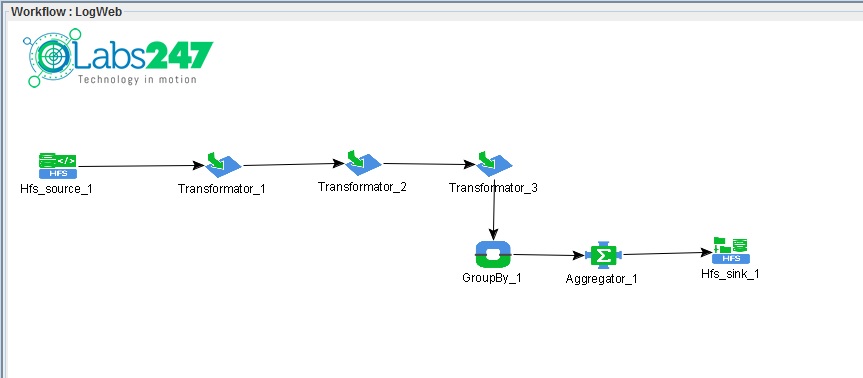
Hfs_source_1 → transformator_1
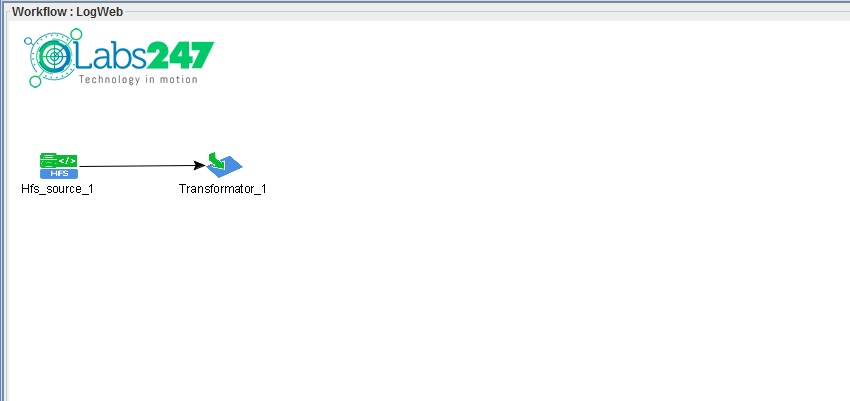
This source will read the files:
web-access.log
Step 2 — Parse Log Using GrokRegex
To split the log into fields, the GrokRegex function is used .
This function comes from the popular log parsing technology in the Big Data ecosystem.
Steps:
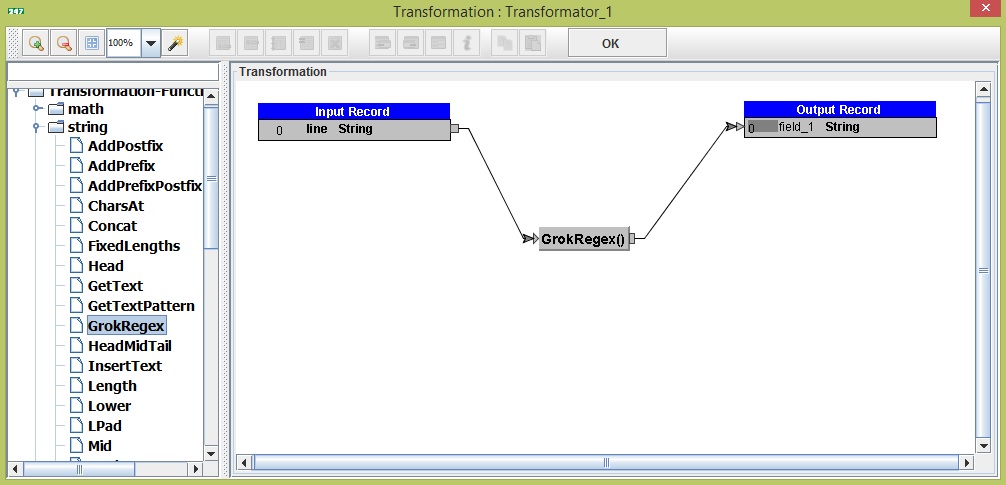
Then open the GrokRegex configuration (by double clicking mouse on it) .
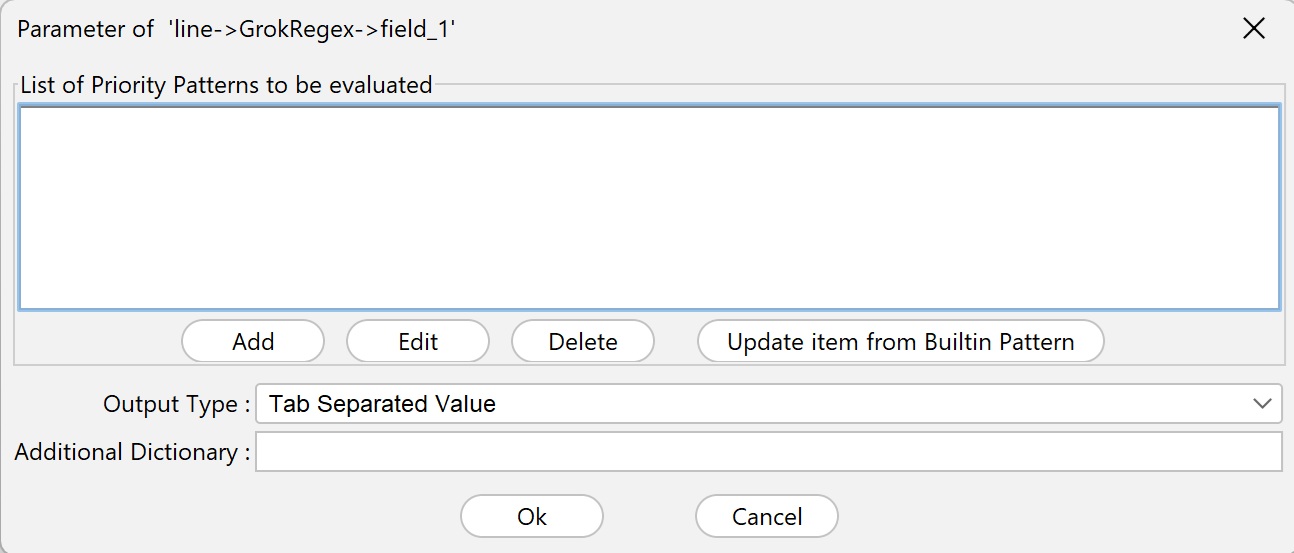
Configuration steps:
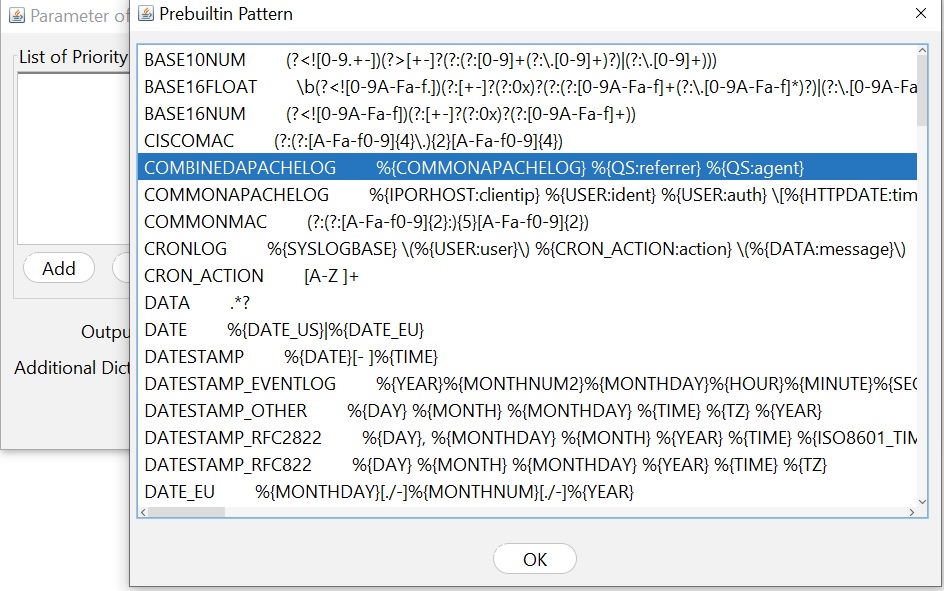
- Klik Add List Item from Builtin Pattern
- Select pattern:
COMBINEDAPACHELOG
- Output format:
JSON
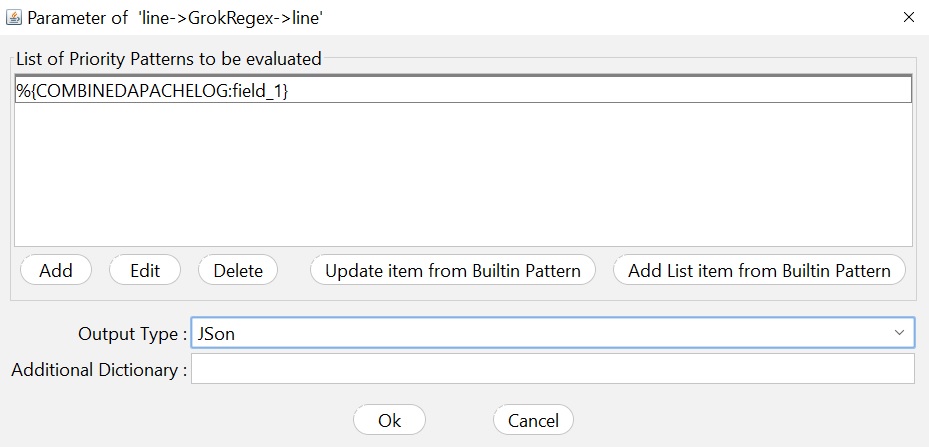
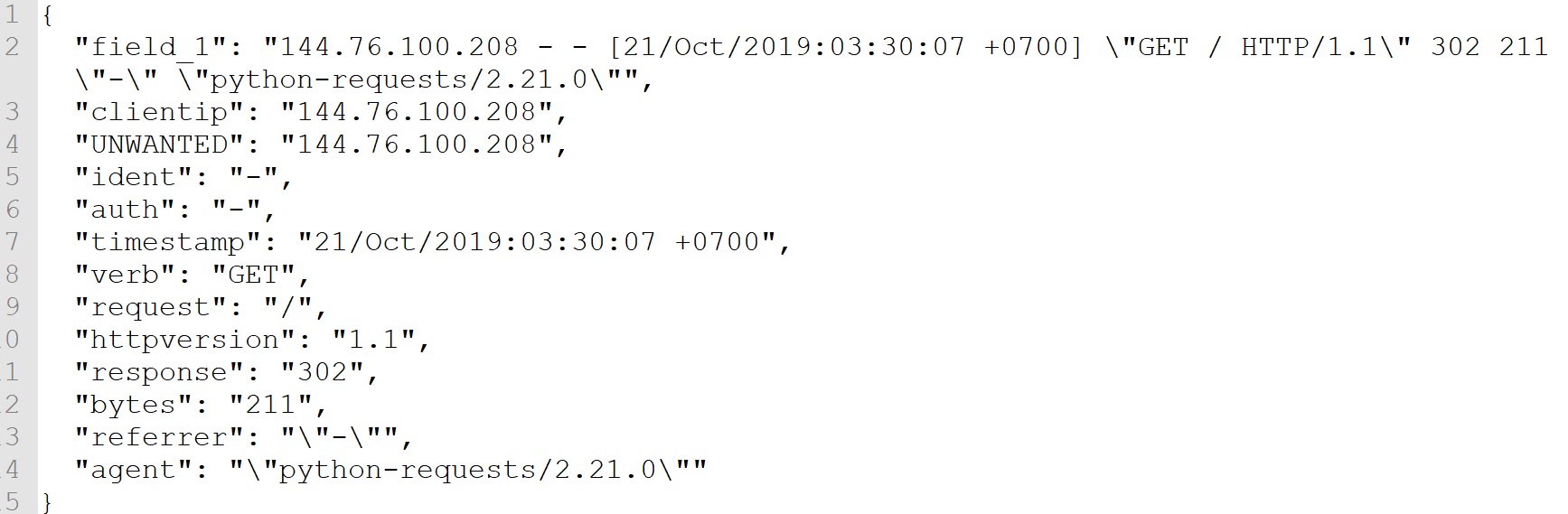
After this process, each log will be converted into a JSON structure .
Example of parsing results:
Step 3 — Extract JSON Fields
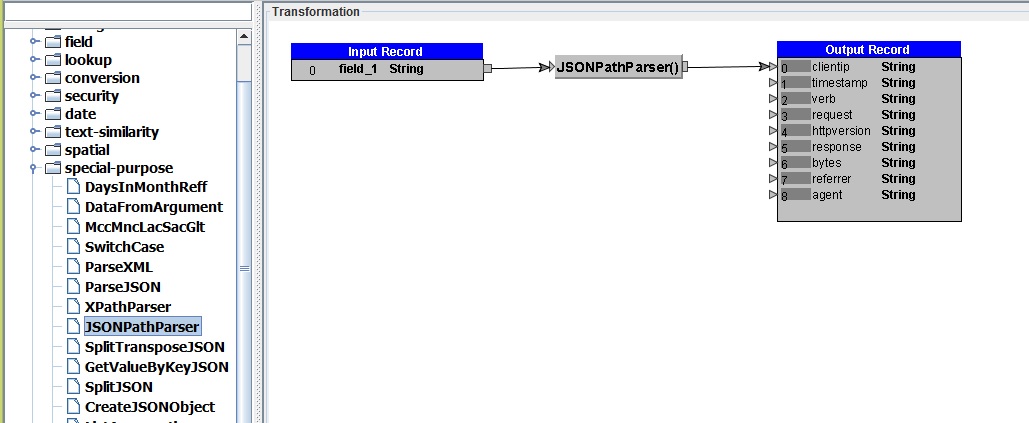
Next we retrieve the field values from JSON using JSONPathParser .
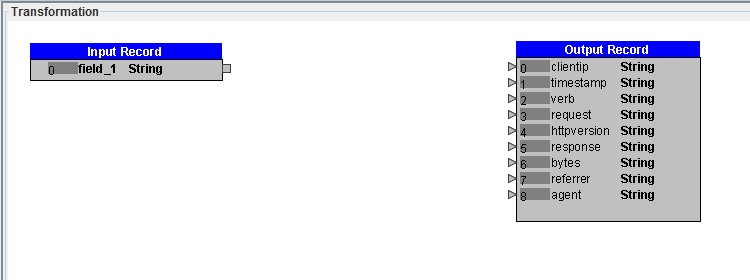
Open Transformator_2 configuration .
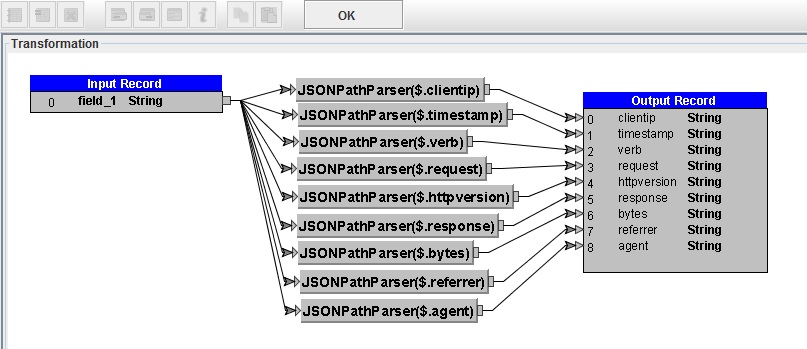
Delete all output fields (by clicking right mouse on Out Record then select 'Delete All Fields'), then add the following fields:
    clientip
    timestamp
    verb
    request
    httpversion
    response
    bytes
    referrer
    agent
Use the function:
JSONPathParser
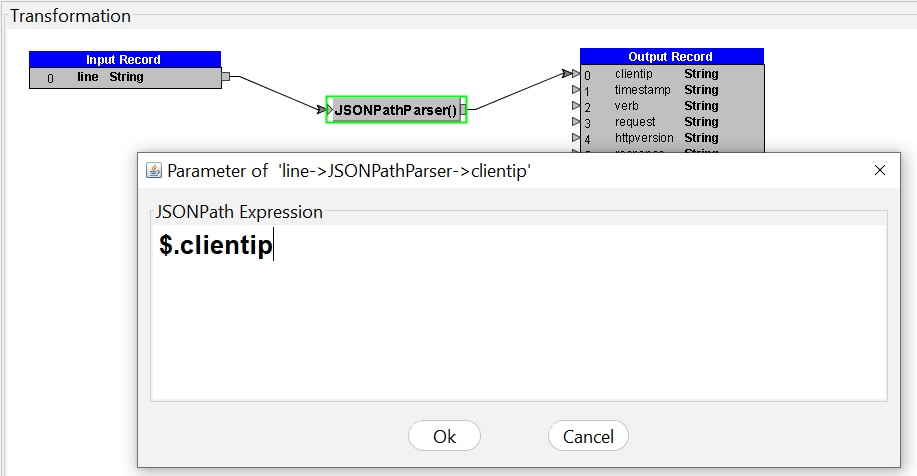
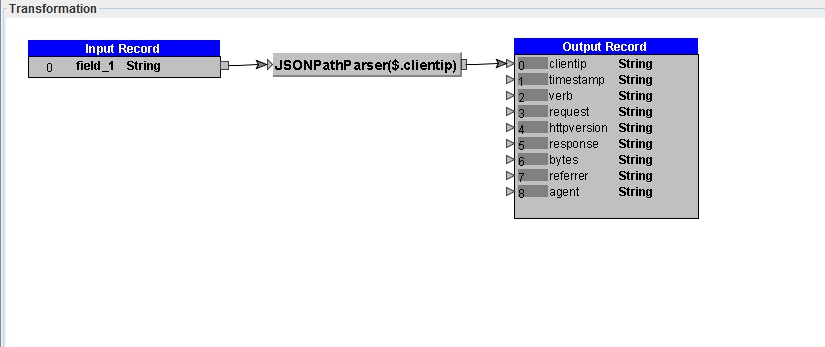
Set the configuration of the Transformation Function 'JSONPathParser' as follow:
    Form Field      To Field        JSONPath Expression
    ------------------------------------------------------
    field_1         clientip        $.clientip
    field_1         timestamp       $.timestamp
    field_1         verb            $.verb
    field_1         request         $.request
    field_1         httpversion     $.httpversion
    field_1         response        $.response
    field_1         bytes           $.bytes
    field_1         referrer        $.referrer
    field_1         agent           $.agent
Step 4 — Extract Hour from Timestamp
For hourly traffic analysis, we need to take the hour from the timestamp .
- Add Transformator ()
- Connect:
Transformator_2 → Transformator_3
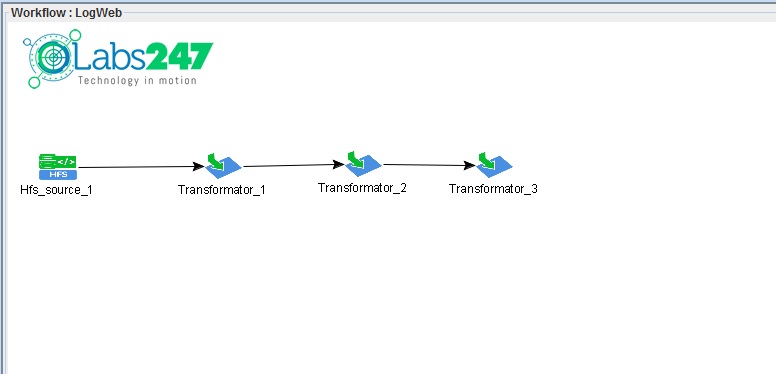
- Open the Parameter Dialog of Transformator_3
- Configuration steps:
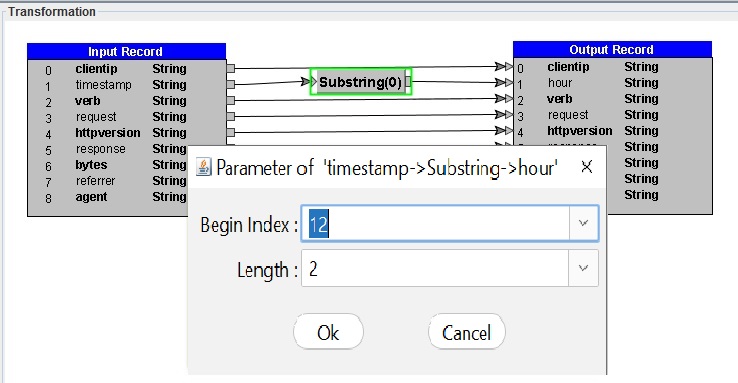
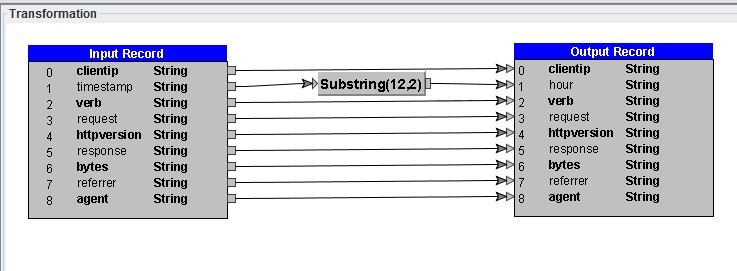
Klik Identity All, on Output Record
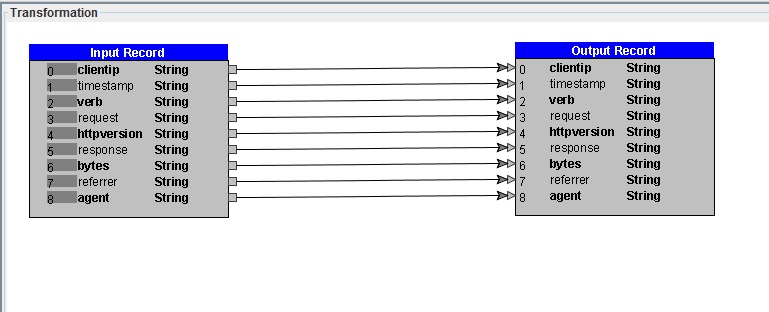
- Rename field:
timestamp → hour
- Delete old link form timestamp → hour
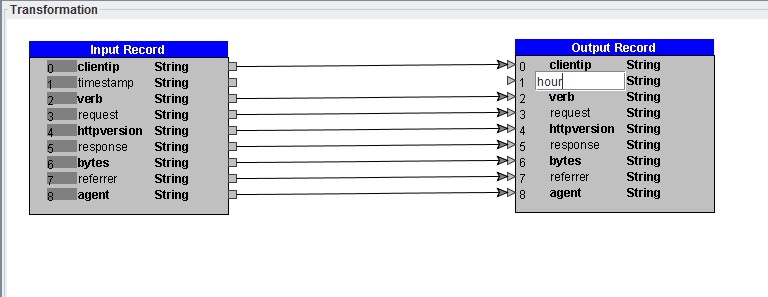
- Add function:
Substring
- Connect:
timestamp → Substring → hour
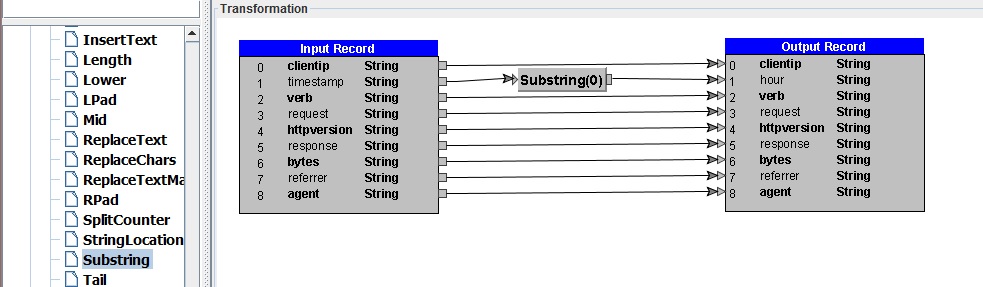
Parameter Substring:
    Parameter           Value
    --------------------------
    Begin Index         12
    Length              2
Example:
21/Oct/2019:03:36:00 +0700
Results:
03
Step 5 — Group Data by Hour
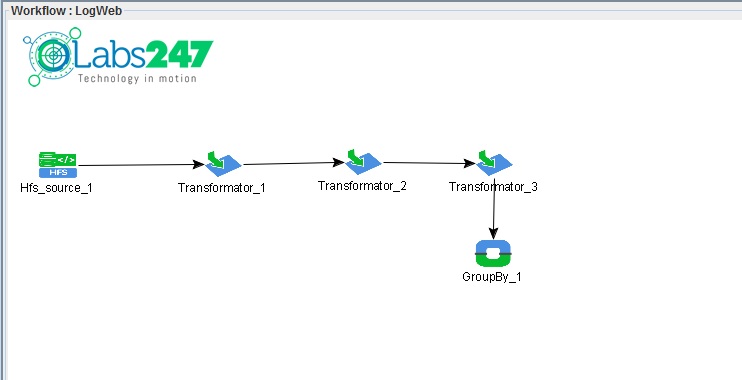
Add components:
GroupBy ( )
)
Connect:
Transformator_3 → GroupBy_1
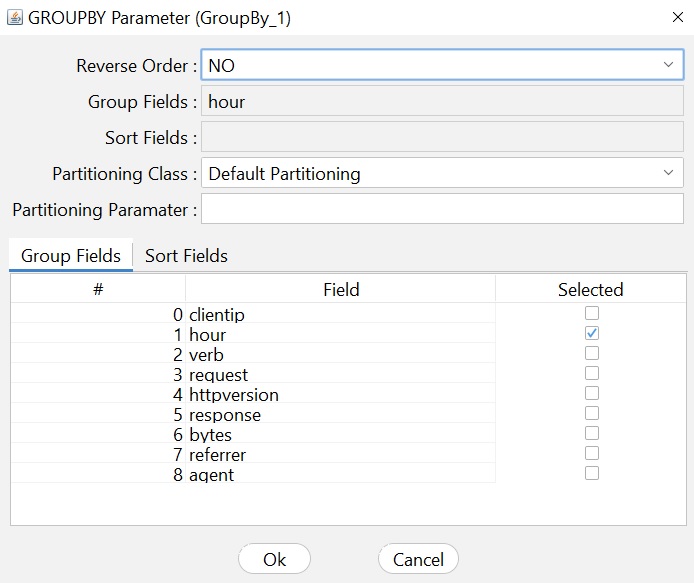
Configuration:
Group Field = hour
This means that the data will be grouped based on access hours .
Step 6 — Calculate Hits and Total Bytes
Add components:
Aggregator ( )
)
Connect:
GroupBy_1 → Aggregator_1
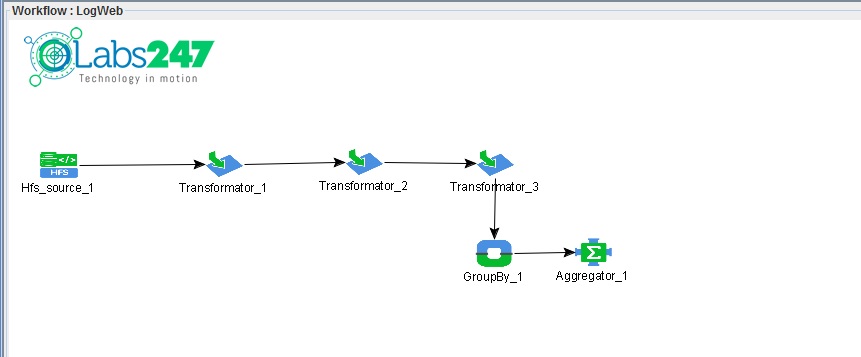
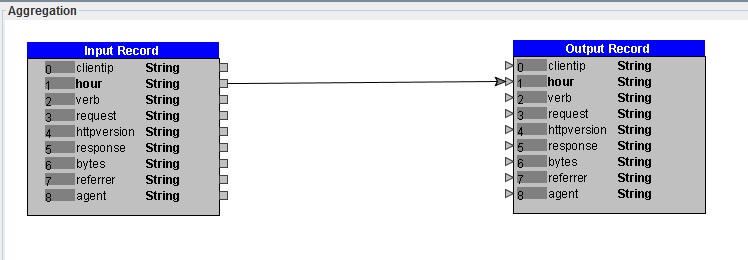
Add output field:
    hits
    sum_bytes
Change the data type to:
Integer
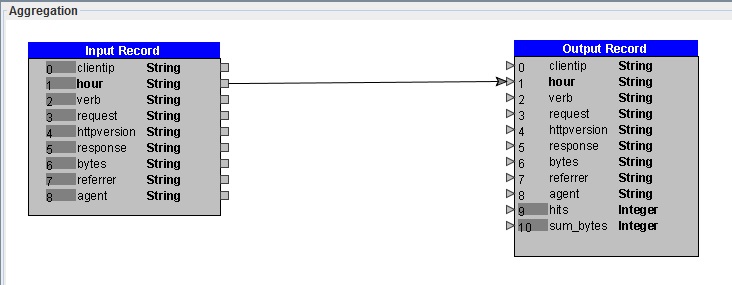
Hit Counter
Use the function:
Count
Connect:
hour → Count → hits
This function counts the number of requests per hour .
Sum of Bytes
Use the function:
ConditionSum
Connect:
bytes → ConditionSum → sum_bytes
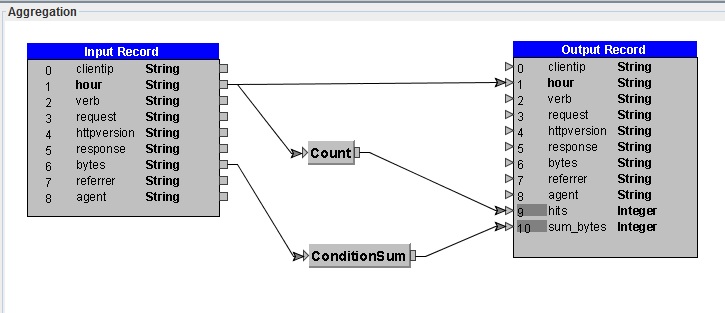
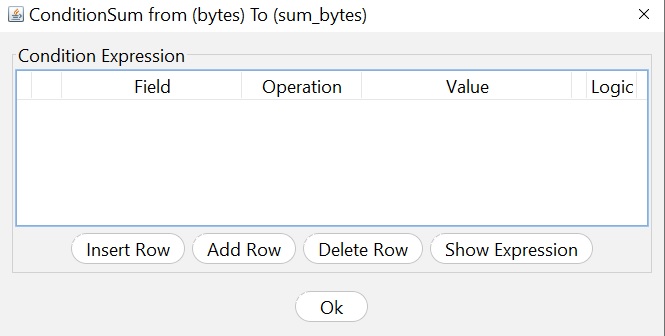
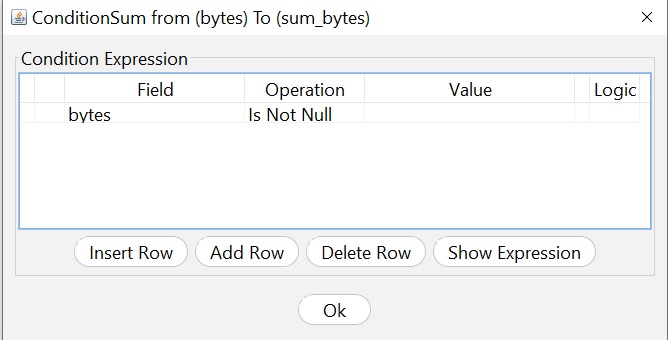
Add conditions, By clicking the 'Add Row' button and selecting 'bytes' in the field, then selecting 'is not null' for the operation :
bytes is not null
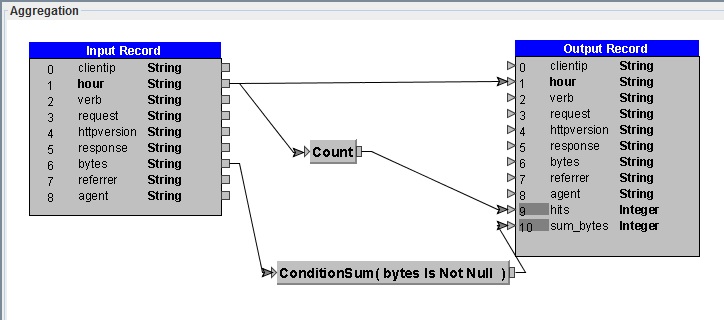
This function calculates the total size of data sent per hour .
Step 7 — Write Result to HDFS
Add Hfs Sink (

) .
Connect:
Aggregator_1 → Hfs_sink_1
Step 8 — Add Required Libraries
Since the workflow uses additional parsers, we need to add libraries.
Menu:
File → Additional Library
Add library:
    grok
    jsonpath
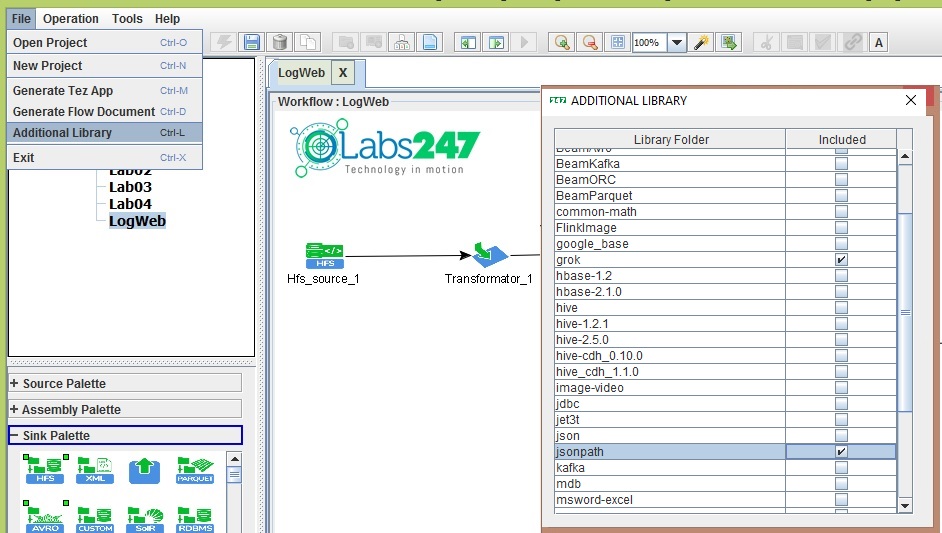
Then save the configuration .
Step 9 — Compile Workflow
- Select MapReduce Engine
- Click the Generate button (
 ) on the toolbar.
The workflow will be compiled into a MapReduce application .
Generated files:
workshop_mr.jar
Step 6 — Upload JSON Dataset
Upload web-access.log dataset to HDFS on Apache Hadoop cluster.
hadoop fs -put web-access.log /hduser/log
Running Workflow on Hadoop
Run the workflow using the command:
hadoop jar workshop_mr.jar workshop.LogWeb /hduser/log /hduser/log_out
Parameter:
    Parameter           Description
    ---------------------------------------------
    workshop_mr.jar	workflow compilation result file
    workshop.LogWeb	class workflow
    /hduser/log         input log directory
    /hduser/log_out	output directories
Output Workflow
The output contains hourly web access statistics .
Sample output:
hour hits sum_bytes
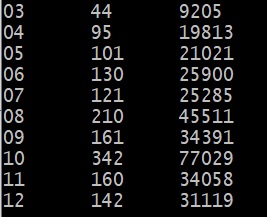
Interpretation:
- hits → number of requests to the server
- sum_bytes → total data sent by the server
Note : The file of workflow LogWeb can be found in the following link :
LogWeb.csd