HGrid247-3.5 provides a sample project (workshop) that can be used to learn how to create and run data processing workflows.
This sample project is available in the file:
workshop.zip
The sample data is alo available in the files :
    Sample Text Data, and
    Sample Images Data
This project contains several workflows that can be used as practical exercises (workshops) in learning the features of HGrid247
-
Extract Workshop Project
To use the sample project, do the following steps:
- Extract (unzip) file workshop.zip.
- Save the extracted results into a folder, for example:
C:\workspace
After the extract process is complete, a folder will be created:
C:\workspace\workshop
- Structure of Workshop Project
The workshop folder is the HGrid247-3.5 project .
The folder structure is as follows:
    C:\workspace
    └── workshop
         ├── src
         └── workshop.hde
Explanation:
    Component           Function
    ------------------------------------------------------------------------
    src                 Folder for storing packages and workflows
    workshop.hde	The marker file that the folder is an HGrid247 project
The .hde (HGrid247 Data Engineering) file is used by the application to identify the project.
- Content of src Folder
In the src folder , there is a folder that has the same name as the project name.
Example structure:
C:\workspace
    └── workshop
         └── src
              └── workshop
This workshop folder is actually a Java package .
- Content of Package workshop
Workshop packages can include:
In this example project, the workshop package contains several practical workflows.
Example structure:
    C:\workspace
        └── workshop
             └── src
                  └── workshop
                        ├── Lab01.csd
                        ├── Lab02.csd
                        ├── Lab03.csd
                        ├── Lab04.csd
                        ├── LogWeb.csd
                        ├── WFFaceAssociation.csd
                        ├── WFFaceSimilariy.csd
                        ├── WFImageAssociation.csd
                        └── WFImageSimilarity.csd
Each workflow contains a different data processing pipeline.
- Opening the Workshop Project
To open a workshop project in HGrid247, do the following steps.
Step 1
Run the HGrid247-3.5 application .
Step 2
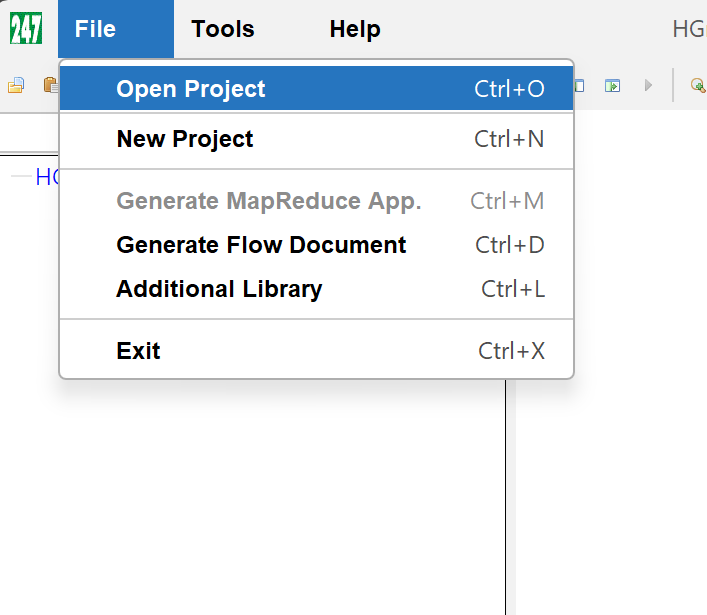
Click the menu:
File → Open Project
Step 3
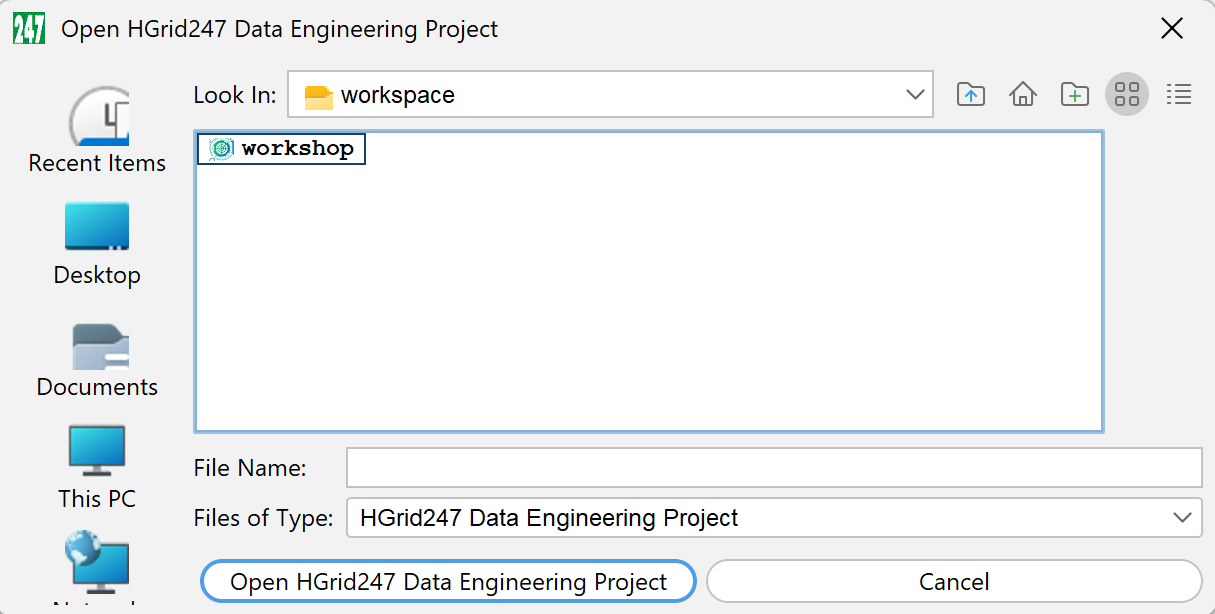
On the Open Project dialog , navigate to the folder:
C:\workspace
Step 4
Double click folder:
workshop
Step 5
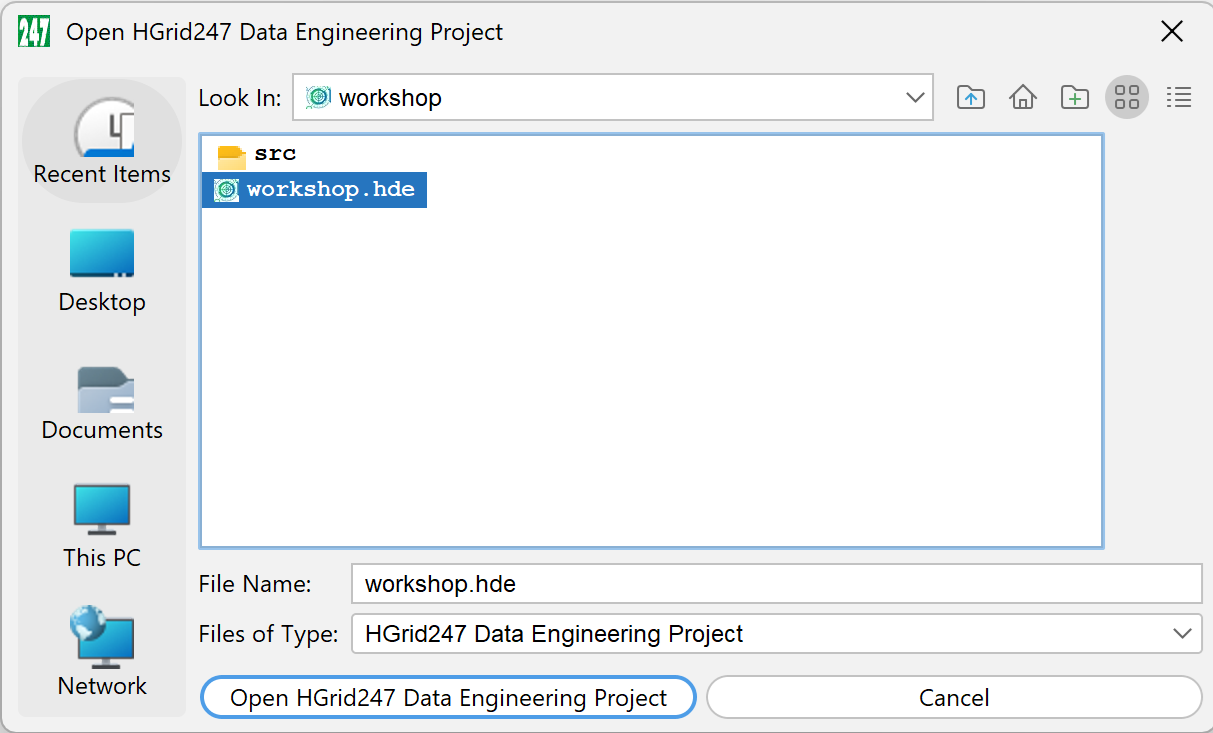
Select project file:
workshop.hde
Then click the button:
Open HGrid247 Data Engineering Project
- Project Appears in Project Tree
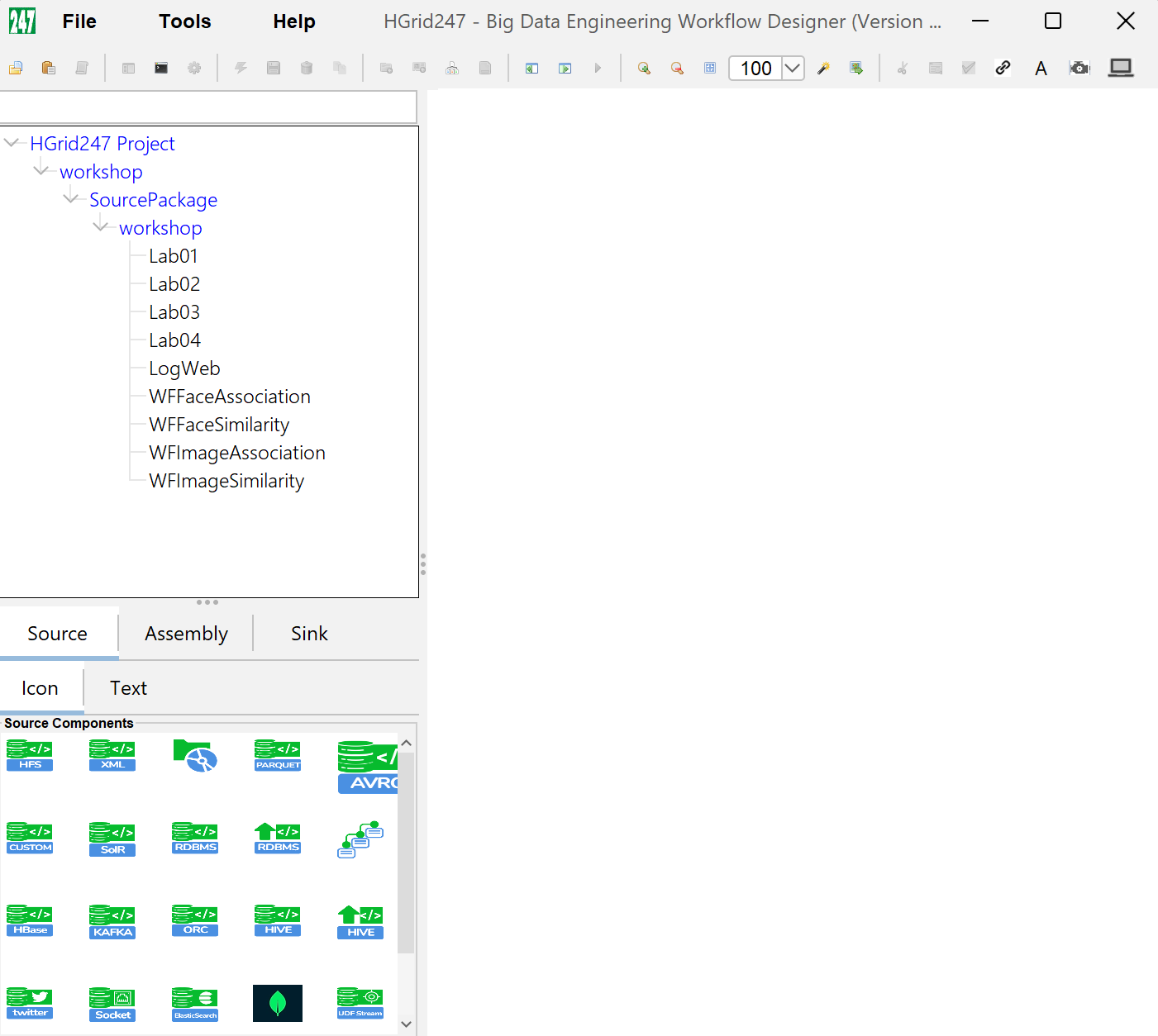
Once the project is successfully opened, it will appear in the Project Tree in the main HGrid247 window.
Color coding on the project tree:
    Color	Information
    Blue	Project name and package
    Black	Workflow
Example display:
    workshop (project)
     ├── SourcePackage (src folder)
          └── workshop (package)
               ├── Lab01
               ├── Lab02
               ├── Lab03
- Opening a Workflow
To open the workflow:
Double click pada nama workflow.
Example:
Lab01
The workflow will open in the Canvas Workflow Editor .
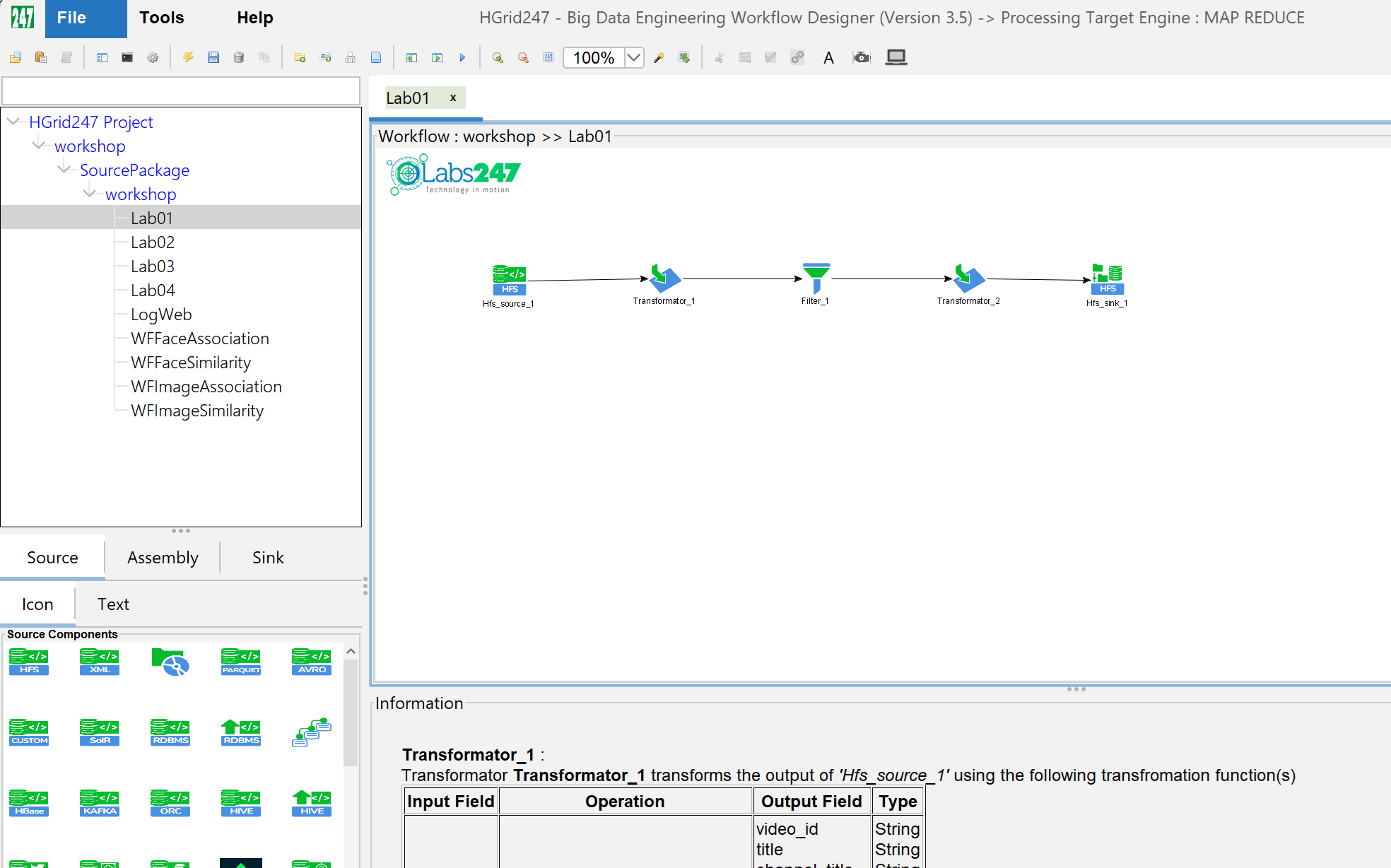
It is on this canvas that users can see:
- Source
- Assembly
- Sink
- Data processing flow