Creating and Writing a Script File in HGrid247-3.5
In HGrid247 version 3.5, scripts are used to automatically run workflows using shell commands.
These scripts are typically used when workflows are to be run on a Big Data engine, such as:
- Apache Hadoop
- Apache Spark
- Apache Flink
- Apacha Beam
1. Create a Script File
The steps for creating a script are as follows:
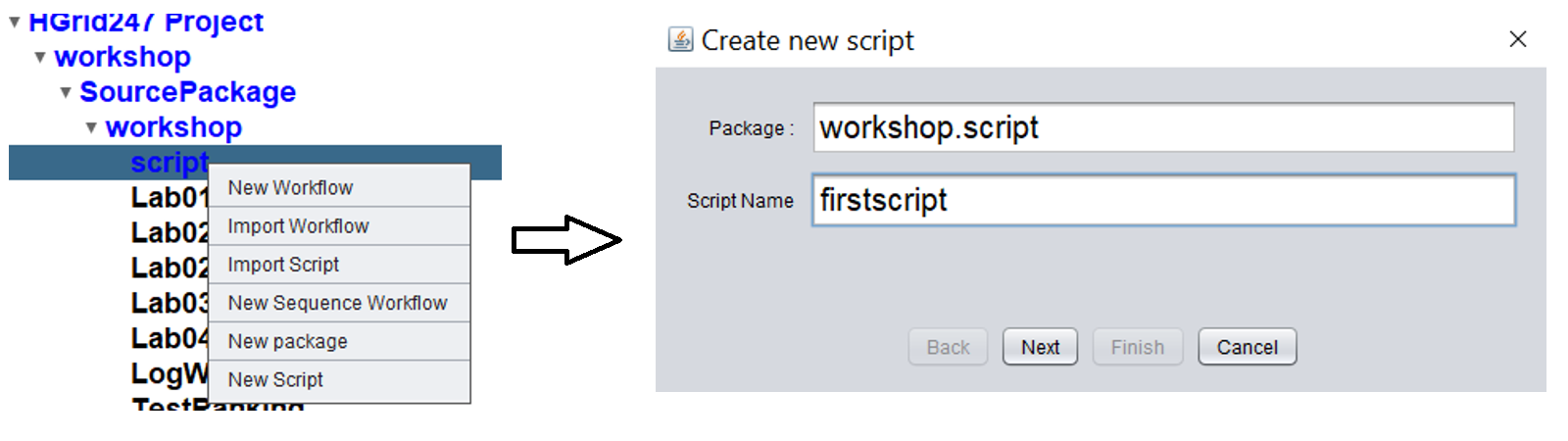
- Hover your mouse over the package in the project.
- Right-click on the package.
- Select the New Script menu from the popup menu.
- After that, the Create New Script dialog will appear .
2. Naming the Script
In the dialogue:
-
Type the script name.
Example:
firstscript
- Click the Next button .
- Click the Finish button .
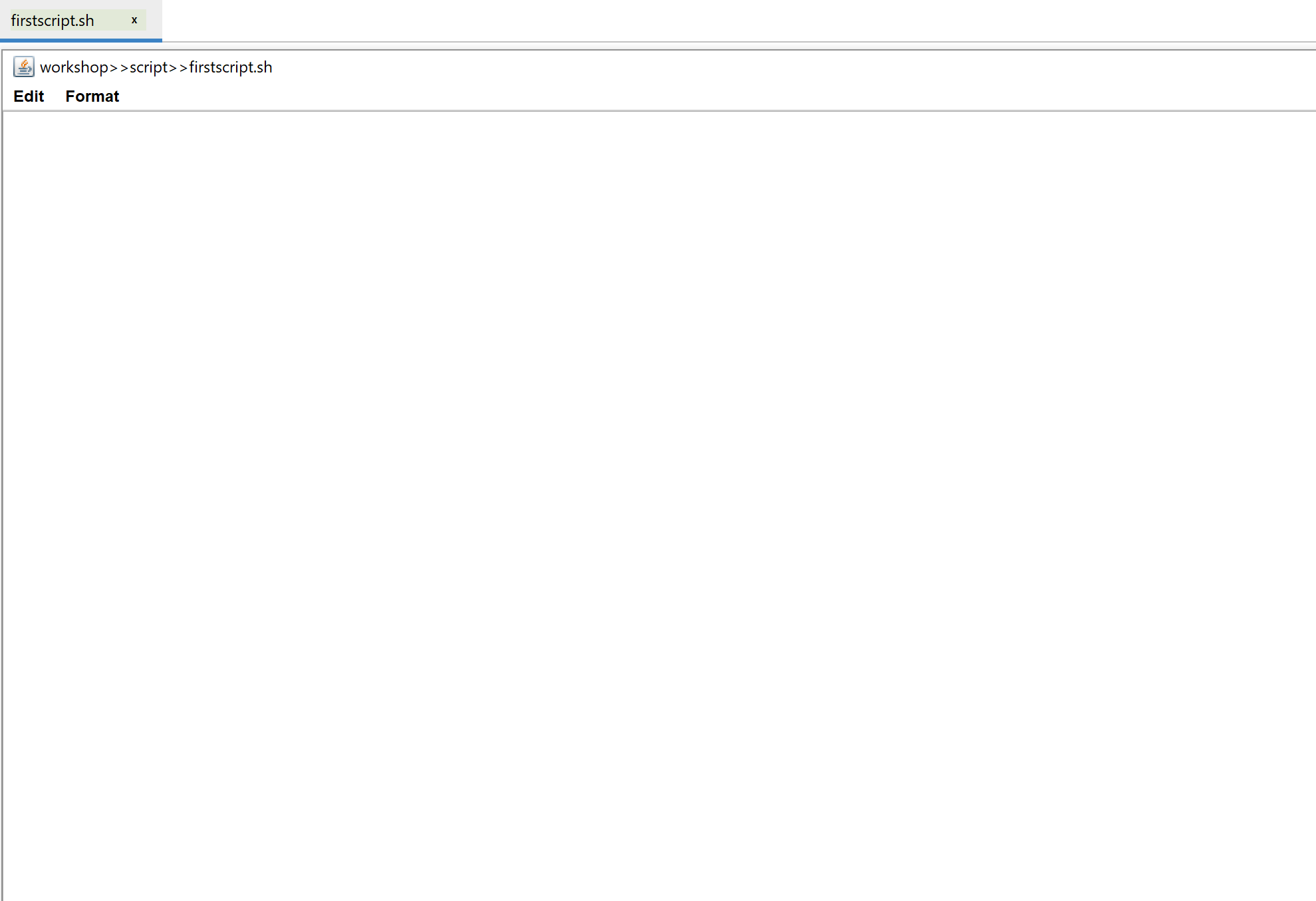
Once the process is complete, the Script Editor will open.
3. Script Editor
Script Editor is a place to write and edit shell scripts .
This editor has two main menus:
Menu Edit
This menu is used to edit the contents of the script.
Available features:
Its main function is to help the script editing process easily .
Menu Format
This menu is used to set the script display in the editor.
Available features:
- Word Wrap → wraps text so it doesn't go beyond the screen
- Font → change font type and size
This menu does not affect the script execution, only the display in the editor .
4. Writing Scripts Manually
Users can write shell scripts manually in the Script Editor.
Example of a simple script:
    #!/bin/bash
    spark-submit --class workshop.Lab03 workshop.jar input output
This method requires knowledge of:
- parameter workflow
- parameter order
- command engine
5. Writing Scripts with Drag and Drop Workflow
An easier way is to use the drag and drop workflow feature .
Steps:
- Open the Workflow Tree in the project.
- Select the workflow you want to run.
- Drag the workflow .
- Drop ke Script Editor.
After that, HGrid247 will automatically create a shell command to run the workflow according to the selected engine.
Advantages of this method:
- no need to memorize commands
- automatic parameter order
- reduce script writing errors
Example Workflow Lab03
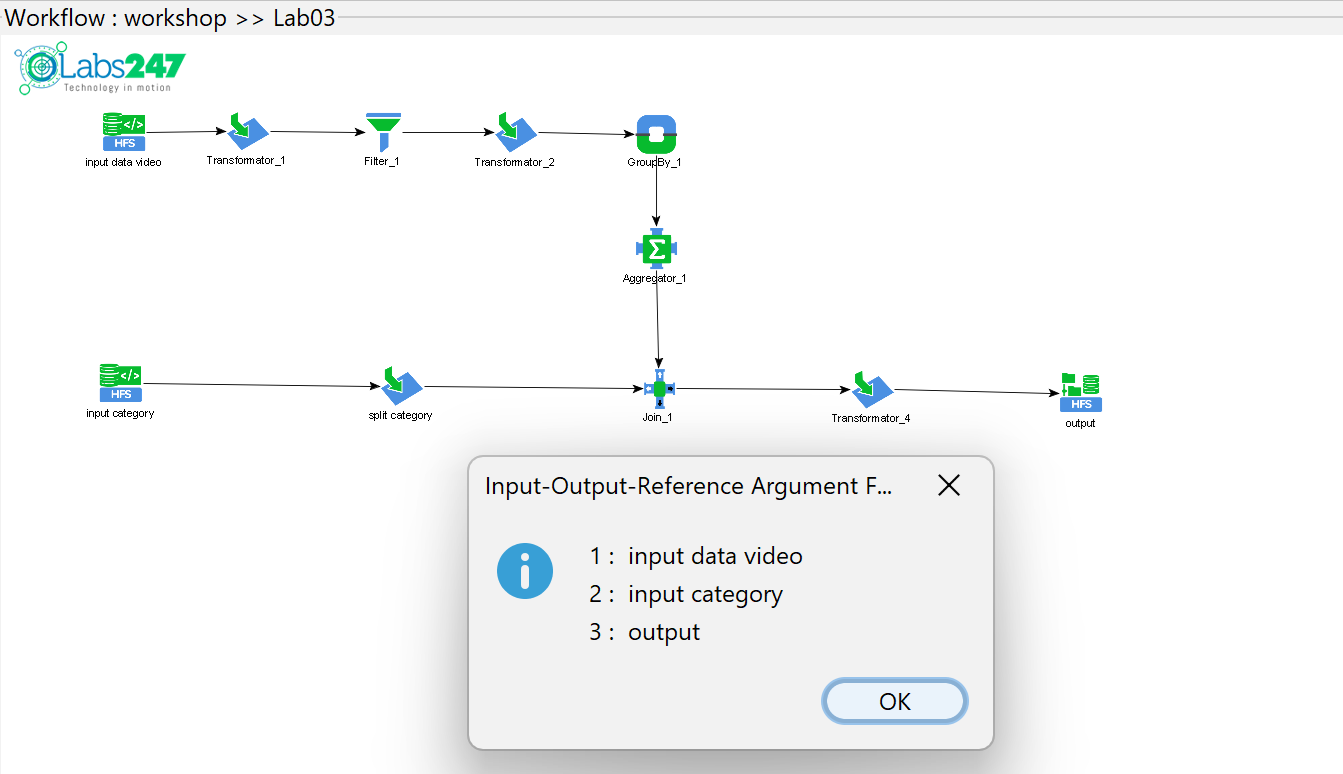
For example, there is a workflow:
Lab03
which is in the package:
workshop
The workflow and argument sequence are shown in the figure below.
If the Lab03 workflow is dragged into the Script Editor, HGrid247 will generate commands like below:
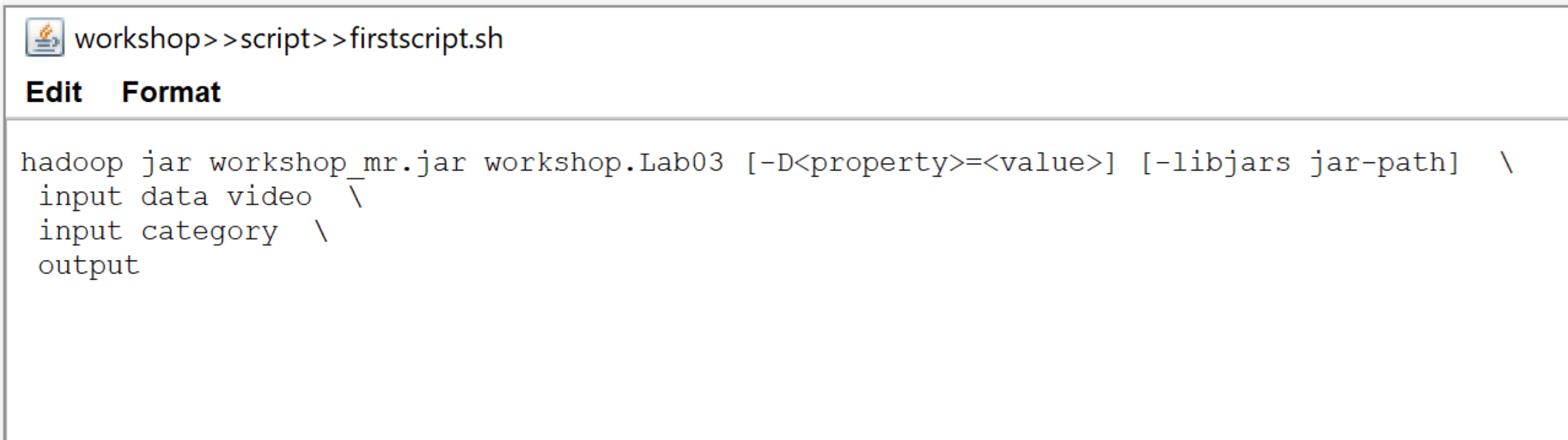
Once the command appears, the user only needs to:
- change input path
- change output path
- adjust other parameters
Example Workflow with Dynamic Parameters
Another example of a workflow is:
TestRDMSSource
which is in the package:
workshop
The workflow and argument sequence are shown in the figure below.
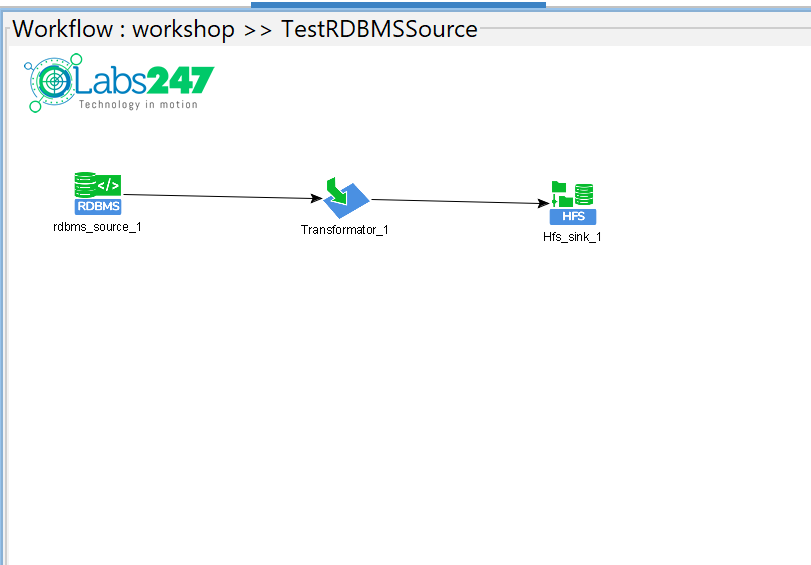
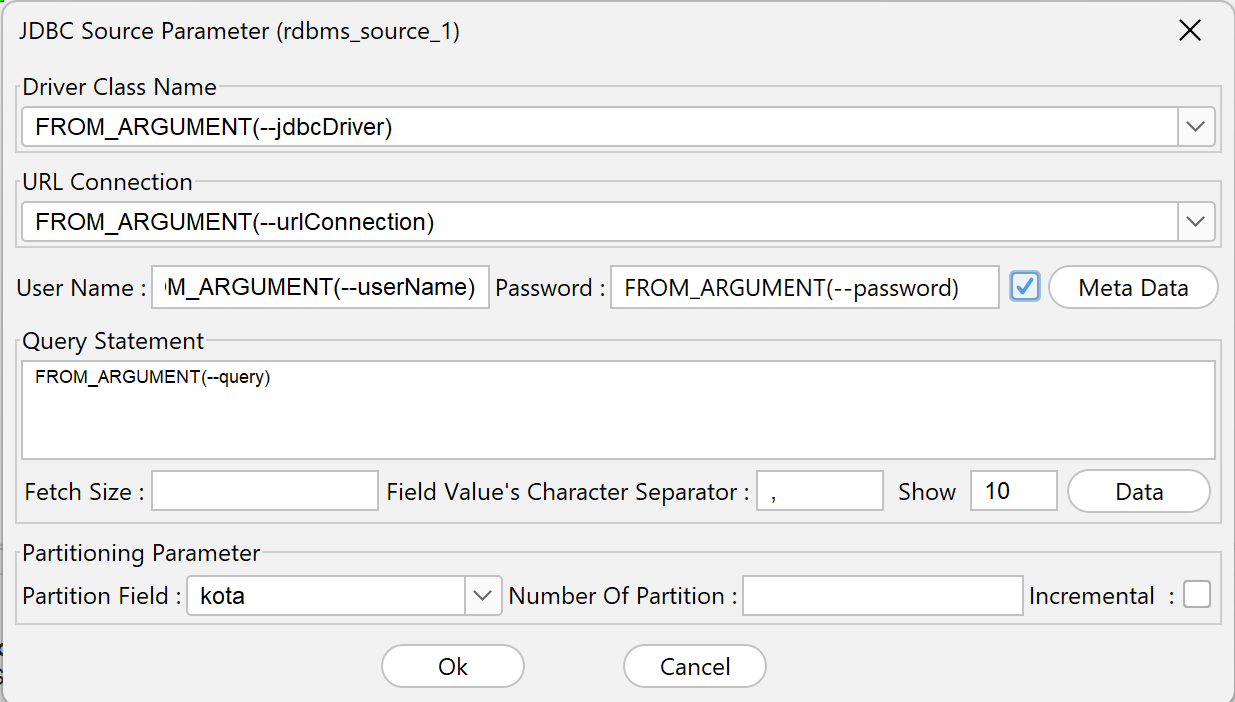
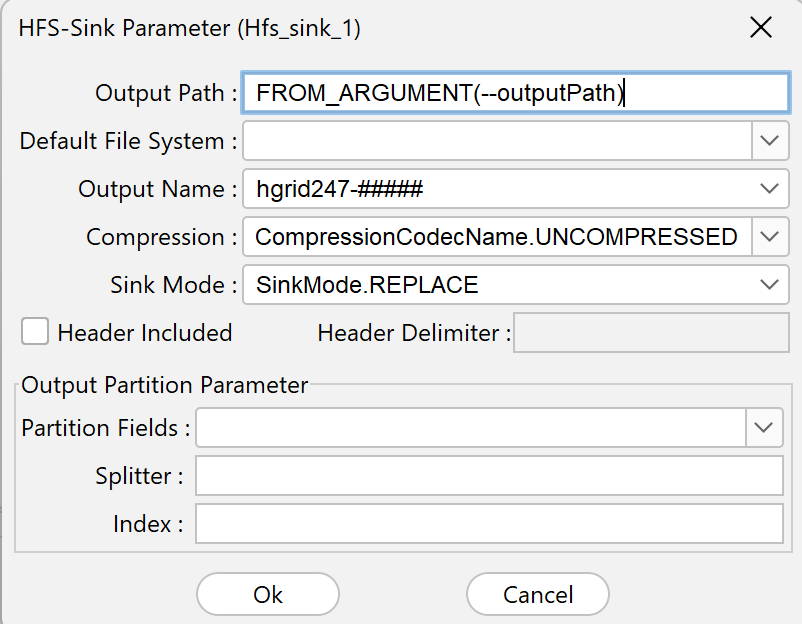
This workflow uses the dynamic FROM_ARGUMENT parameter .
If the TestRDMSSource workflow is dragged into the Script Editor, HGrid247 will generate commands like below:
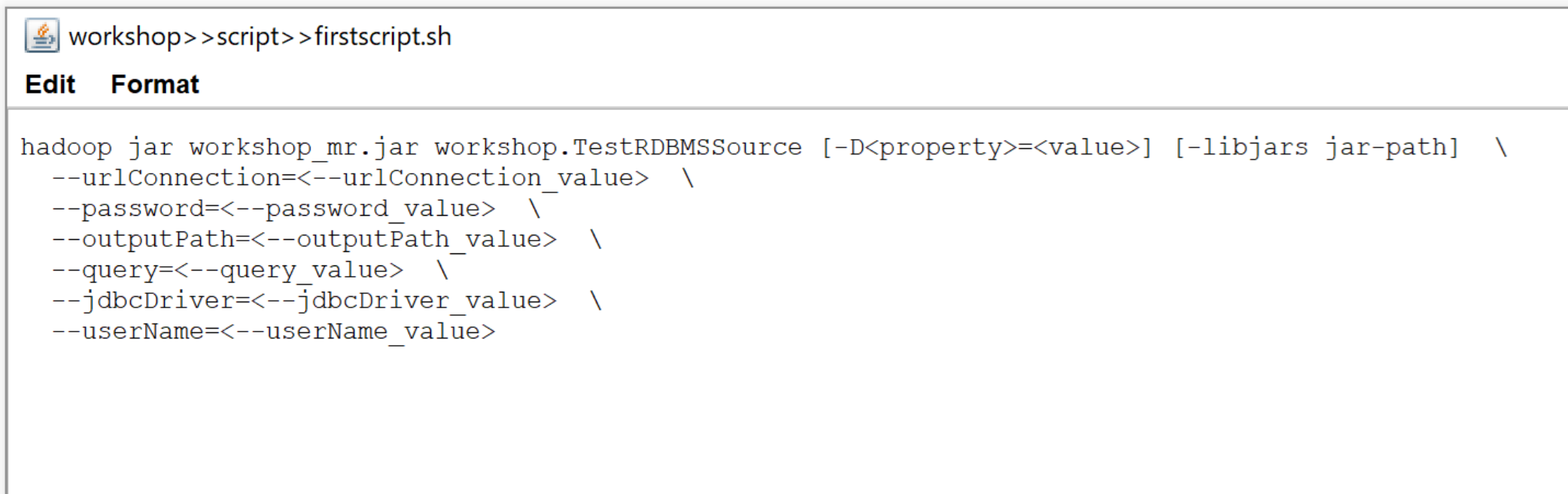
Dynamic parameters mean that the order of parameters is no longer mandatory .
Usage example:
    --dbhost=localhost
    --dbname=testdb
    --table=customer
In this parameter:
- what matters is the parameter name
- the order of the parameters does not have to be the same
This makes the script more flexible.
Once the command appears, the user only needs to:
- change the parameter-value
- adjust other parameters