Running a Script on the Cluster from HGrid247-3.5
In HGrid247-3.5 , scripts created in the Script Editor can be run directly on a Big Data cluster .
However, before running the script on the cluster, there are several steps that must be done first, namely:
- Setting up edge node cluster configuration
- Sending the project JAR file to the edge node
- Running scripts on the cluster
1. Setting Edge Node Configuration
The first step is to configure the edge node so that HGrid247 can connect to the Hadoop cluster.
Edge nodes are servers that are used as gateways to access clusters such as:
- Apache Hadoop
- Apache Spark
- Apache Flink
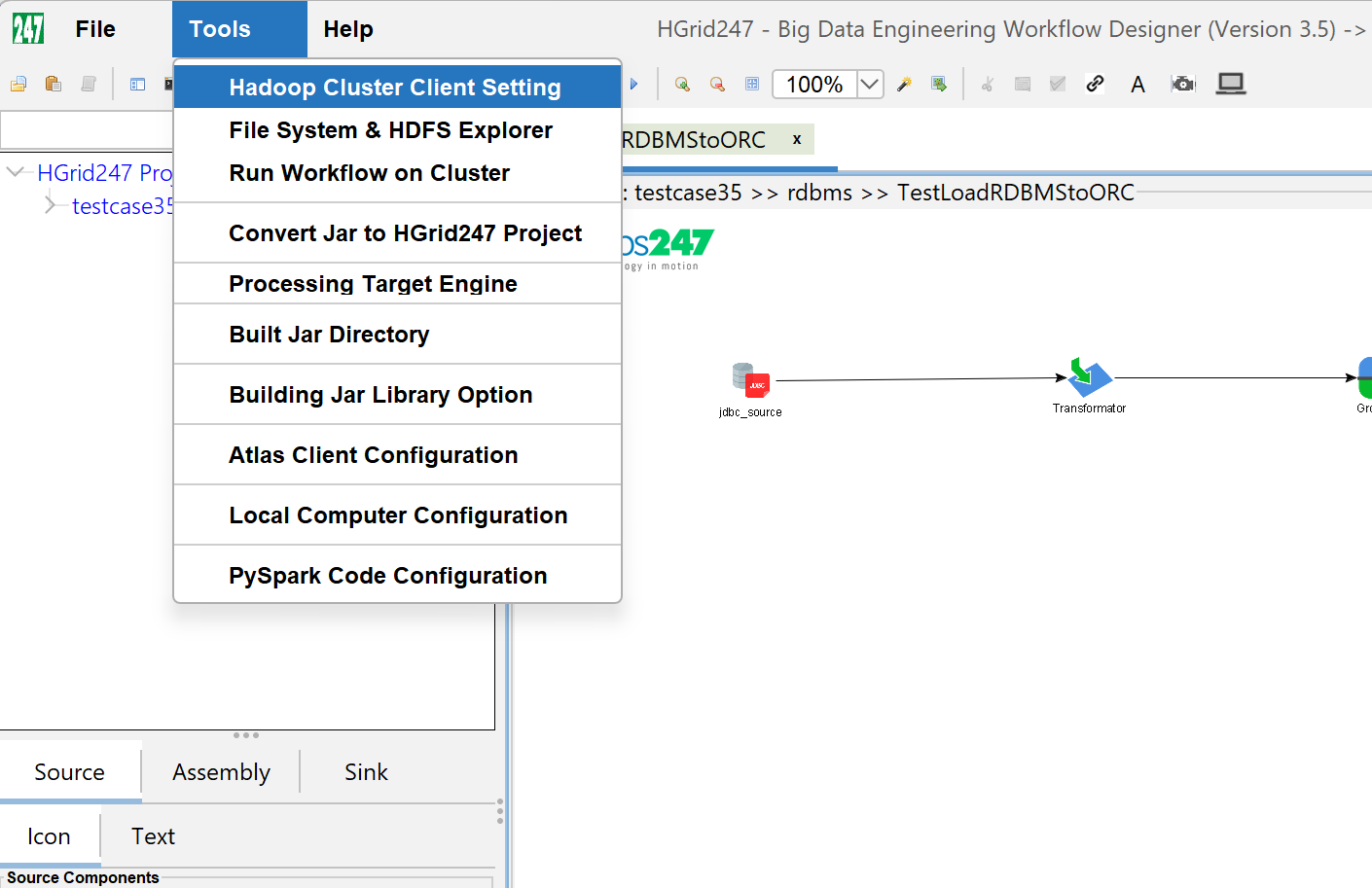
Step 1 — Open Cluster Client Setting
On the menu bar select:
Tools → Hadoop Cluster Client Setting
After that, a dialog will appear to fill in the edge node parameters .
Step 2 — Fill Edge Node Parameters
Fill in the parameters according to the cluster configuration.
Examples of parameters that are usually filled in:
    Parameter               Description
    -------------------------------------------------
    Edge Node IP            IP/Host-name of server edge node
    SSH Port                SSH port
    Username                user of server edge node
    Password                password of of server edge node
    Hadoop Home             Hadoop installation location
    Spark Home              Spark installation location
    Working Directory       Working Directory in the server edge node
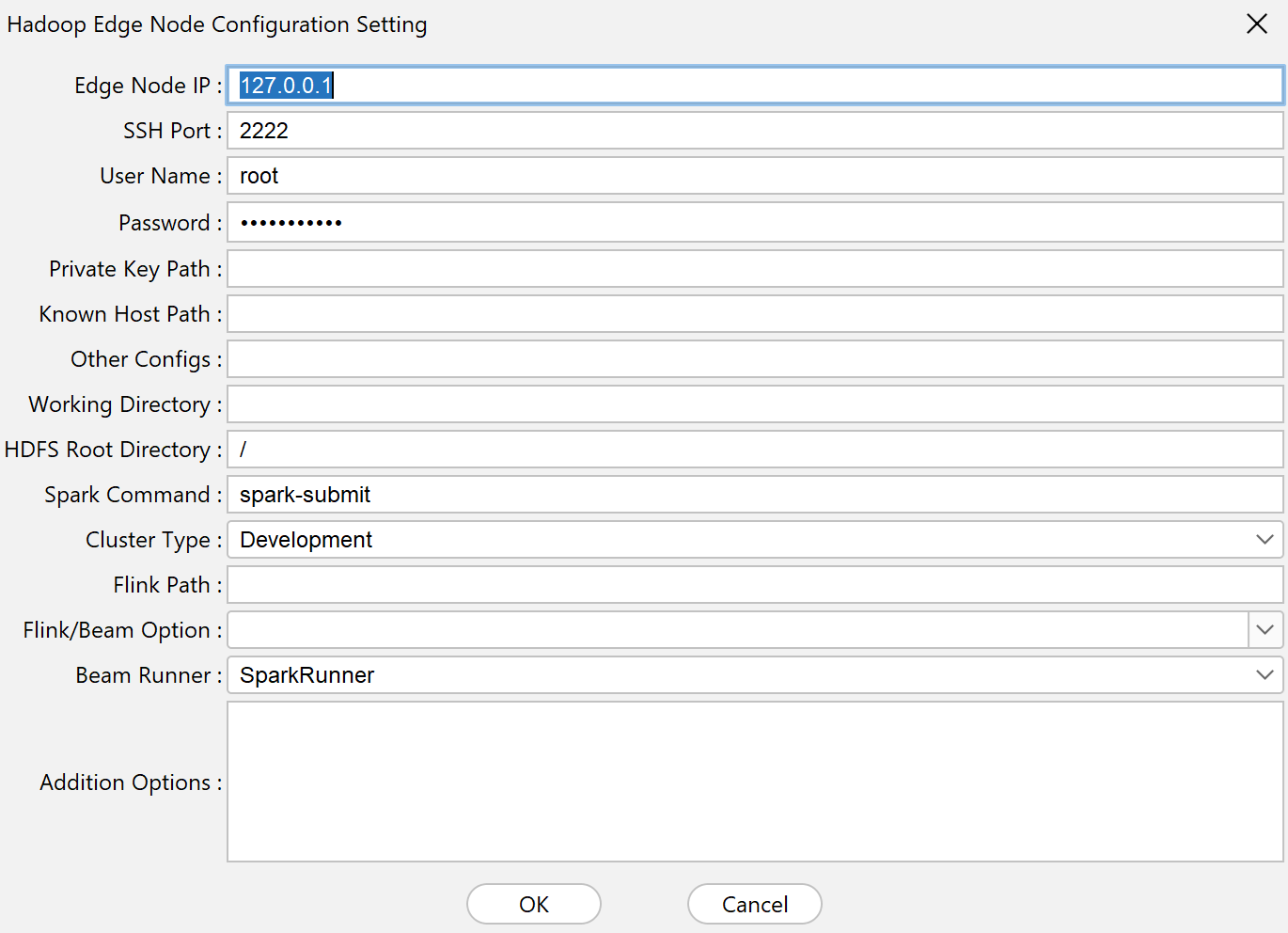
This configuration allows HGrid247 to access the cluster through edge nodes .
2. Verify Connection to Edge Node
To ensure successful connection, use the following menu.
Tools → File System & HDFS Explorer
If the connection is successful, the File System & HDFS Explorer will appear.
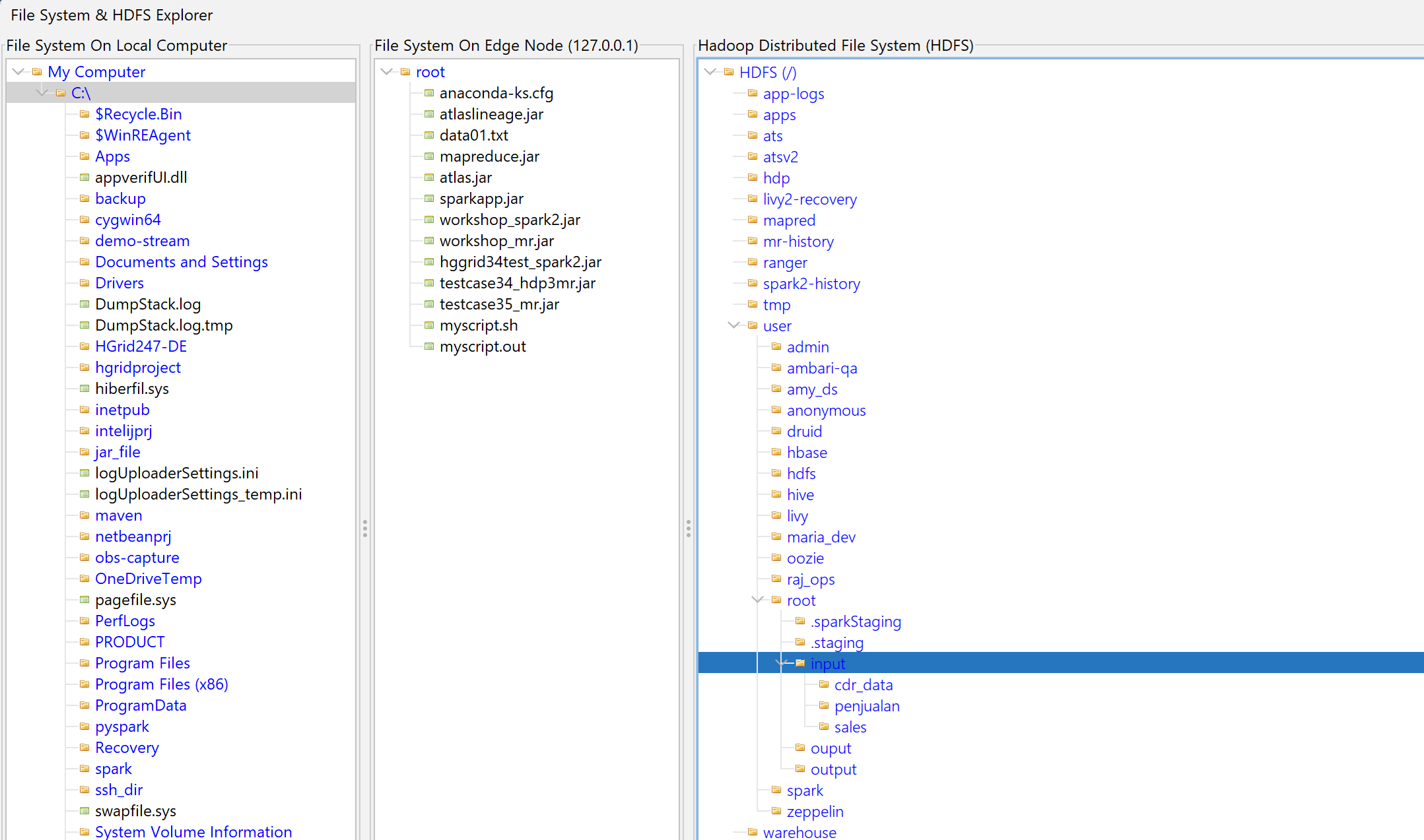
This explorer allows users to view/transfer:
- edge node file system
- HDFS file system
- local computer file system
3. Sending JAR File to Edge Node
After the cluster connection is successful, the next step is to send the project JAR file to the edge node.
This JAR file contains:
- workflow program
- engine execution code
- dependency program
Step 1 — Select Project
Hover your mouse over the project.
Example:
testcase35
Step 2 — Right Click Project
Right-click on the project and select the menu:
Send file testcase35_mr.jar to edge node
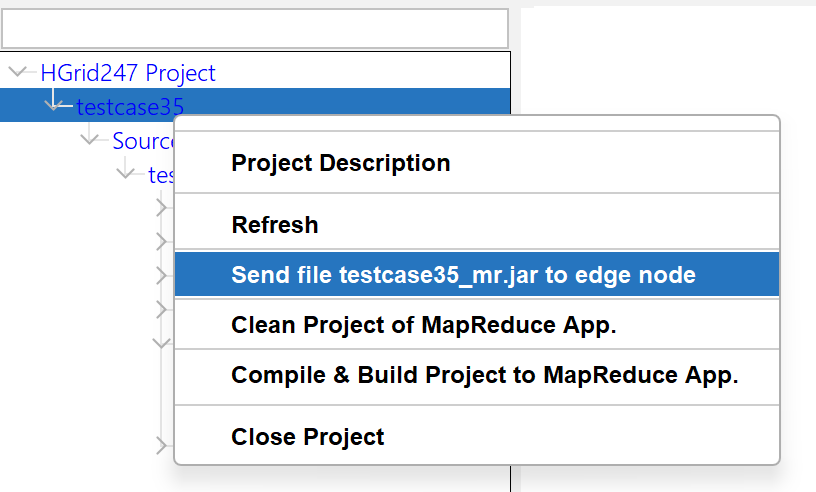
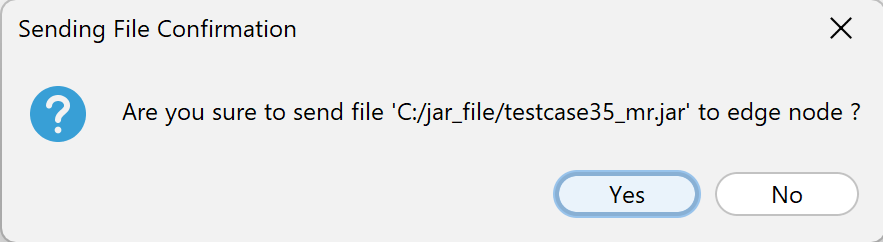
Step 3 — Confirmation Dialog
The system will display a file sending confirmation dialog.
Click:
Yes
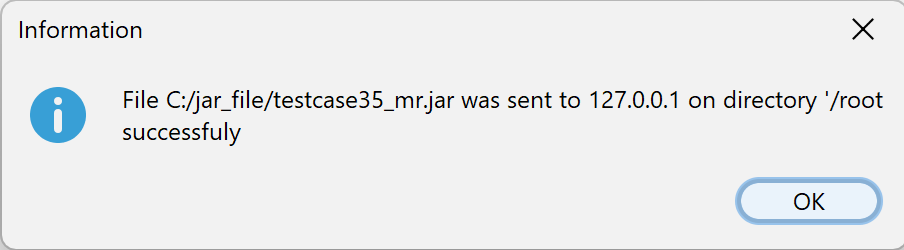
If successful, an information dialog will appear that the JAR file has been successfully sent to the edge node .
4. Running Script on Cluster
Once the JAR file is on the edge node, the script can be run on the cluster.
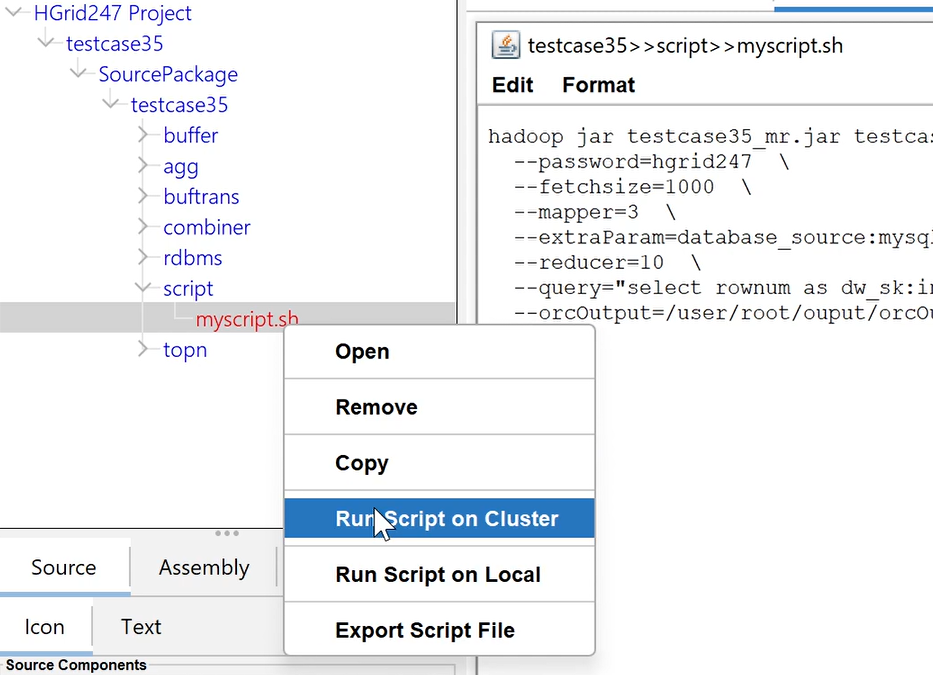
Step 1 — Select Script
Hover your mouse over the script file.
Example:
myscript.sh
Step 2 — Right Click Script
Right click on the script and select:
Run Script on Cluster
Step 3 — Confirmation Dialog
The system will display a confirmation dialog.
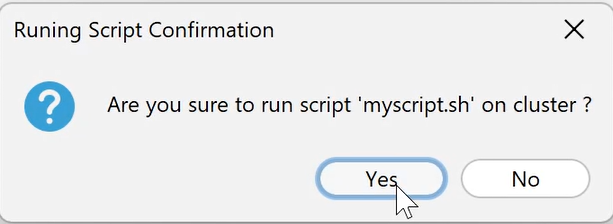
Click:
Yes
5. Script Execution Process
After the script is sent to the edge node:
- The script will be sent to the edge node

- The script will be executed automatically
- Jobs running in the background on the cluster
6. Job Execution Monitoring
When the script starts running, the system will display a dialog:
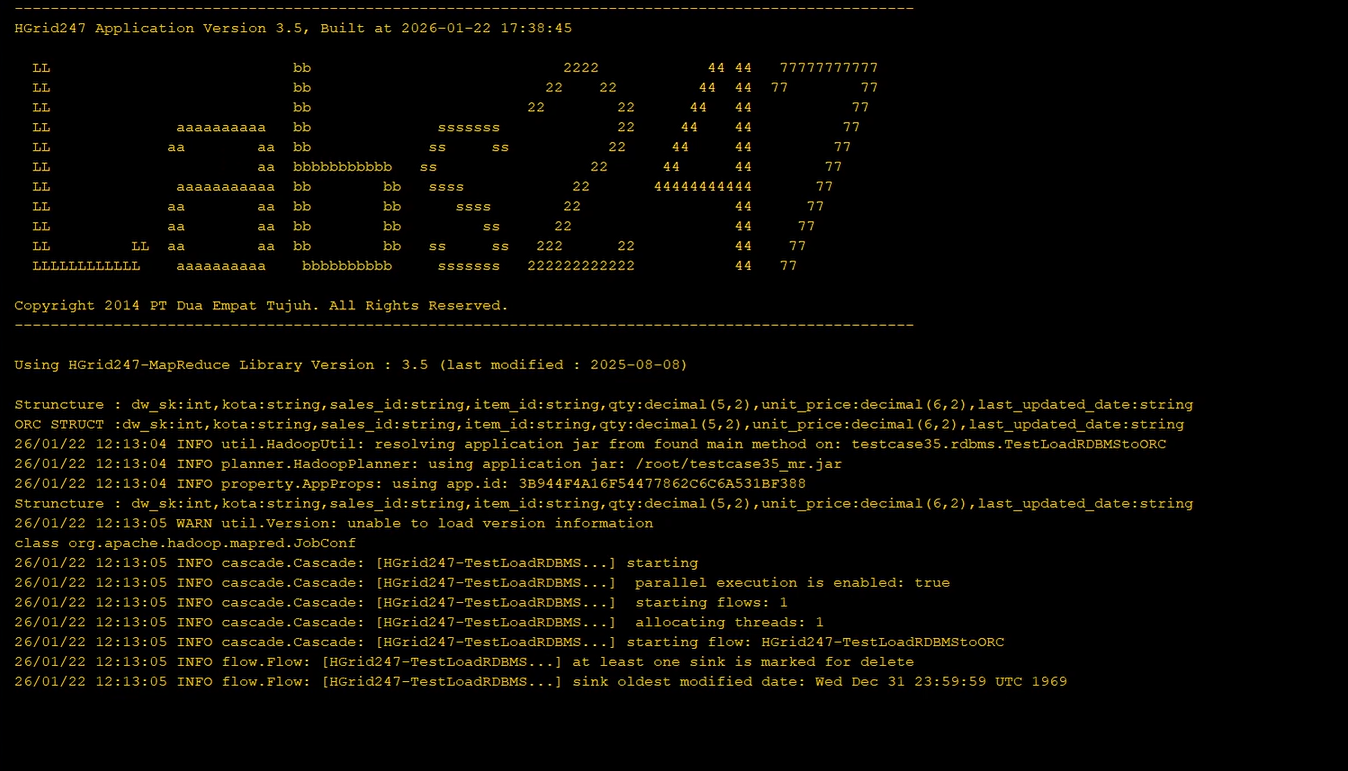
This process shows that:
script has been executed
job is running on the cluster
7. Job Completion
If the job is finished running, the system will display a dialog:
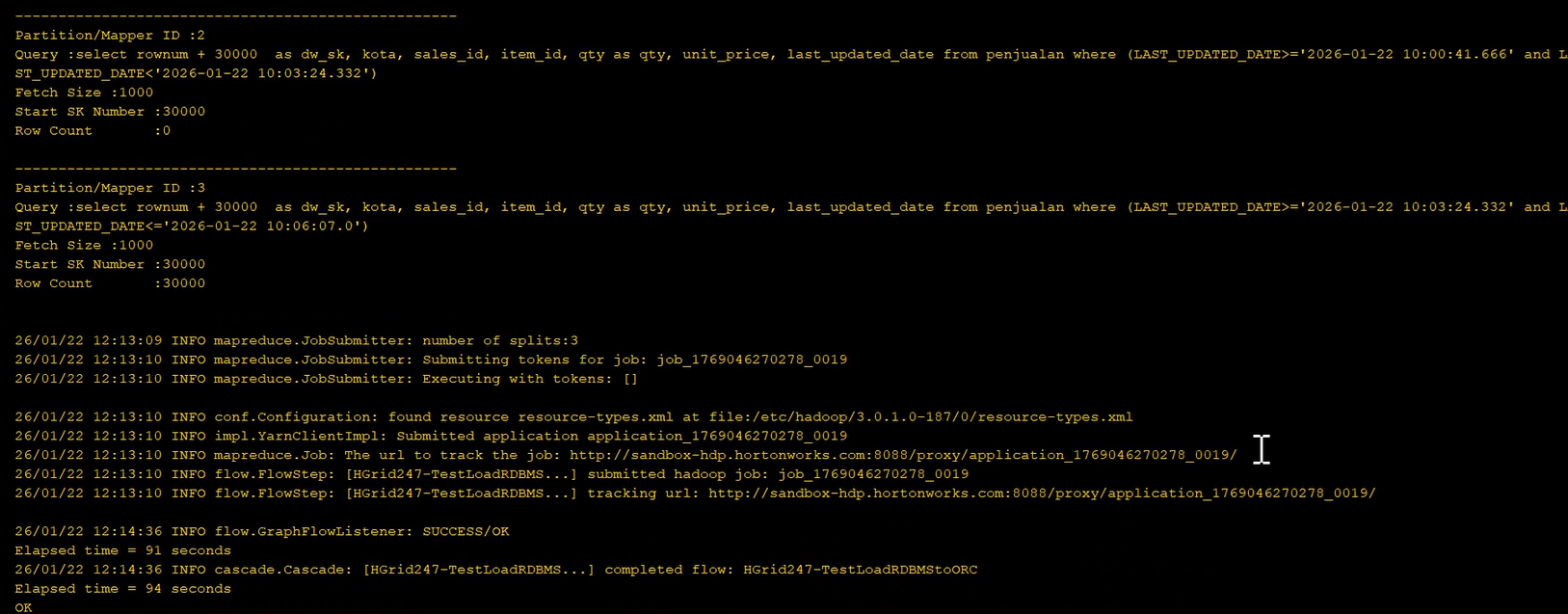
Output data is usually stored on:
Advantages of Running Script on Cluster
Running scripts on a cluster provides several advantages:
Distributed Processing
Data is processed in parallel on multiple nodes.
Automation
Workflows can be run automatically without manual interaction.
Resource Utilization
Cluster resources are used optimally.
Scalability
The system can process very large amounts of data.